> For the complete documentation index, see [llms.txt](https://help.ourarea.in/llms.txt). Markdown versions of documentation pages are available by appending `.md` to page URLs; this page is available as [Markdown](https://help.ourarea.in/ss/calendars/calendar-settings/settings-calender/integrating-calendly-with-your-crm.md).
# Integrating Calendly with Your CRM
Managing your calendar effectively is crucial for organizing your day and ensuring timely follow-ups after appointments, which ultimately boosts customer satisfaction. Calendly is a widely used scheduling tool due to its simplicity and user-friendly interface, making it a preferred choice for many.
However, while Calendly excels at scheduling, it has limitations when it comes to follow-up features, AI integration, and opportunities for upselling. These gaps can be addressed by linking Calendly with your CRM system.
**Steps to Integrate Calendly**
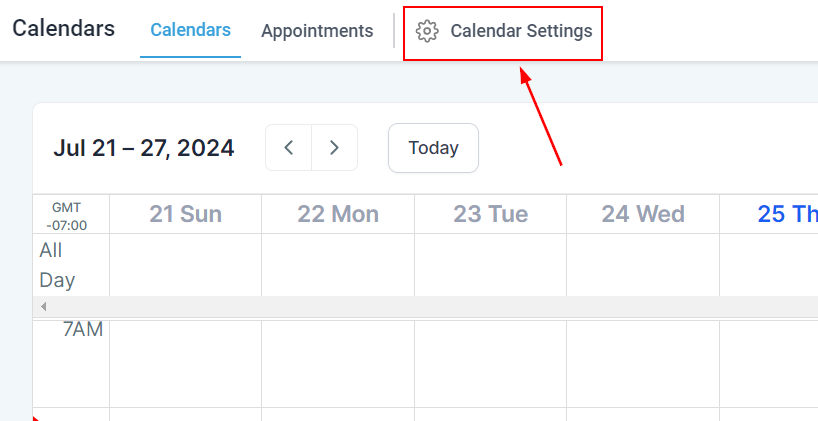
1. Access Calendar Settings: Begin by navigating to the Calendars section in your CRM. Look for the gear icon to access the calendar settings.
\
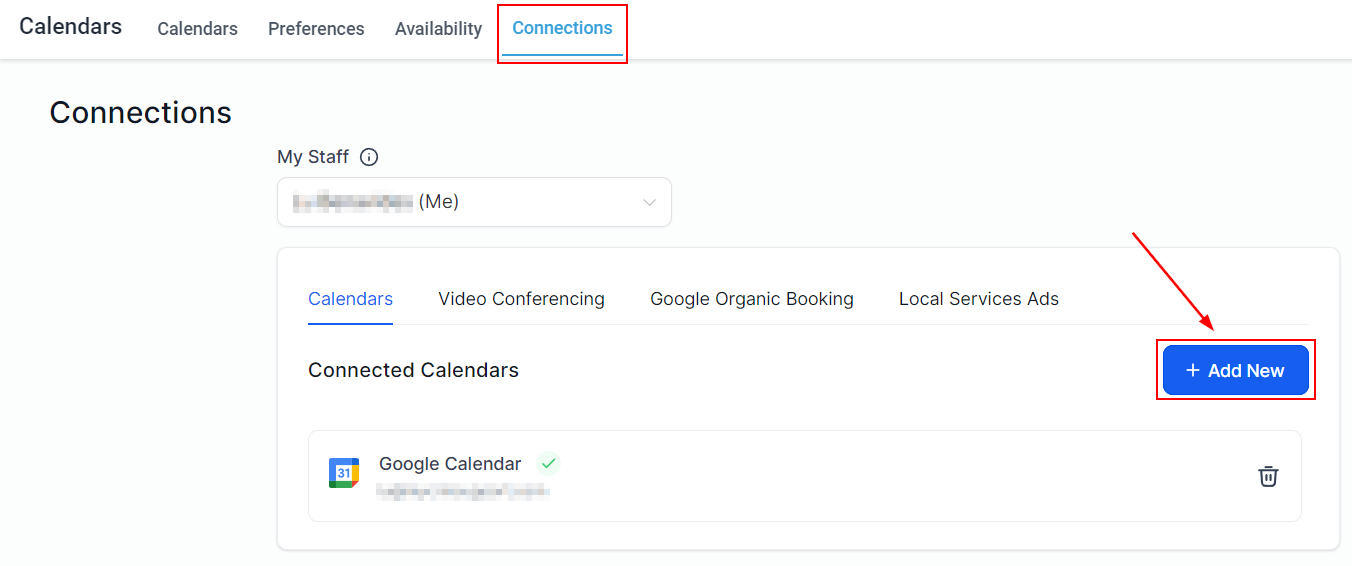
2. Go to the Connections Tab: Within the settings, locate the Connections Tab and click on "Add New."
\
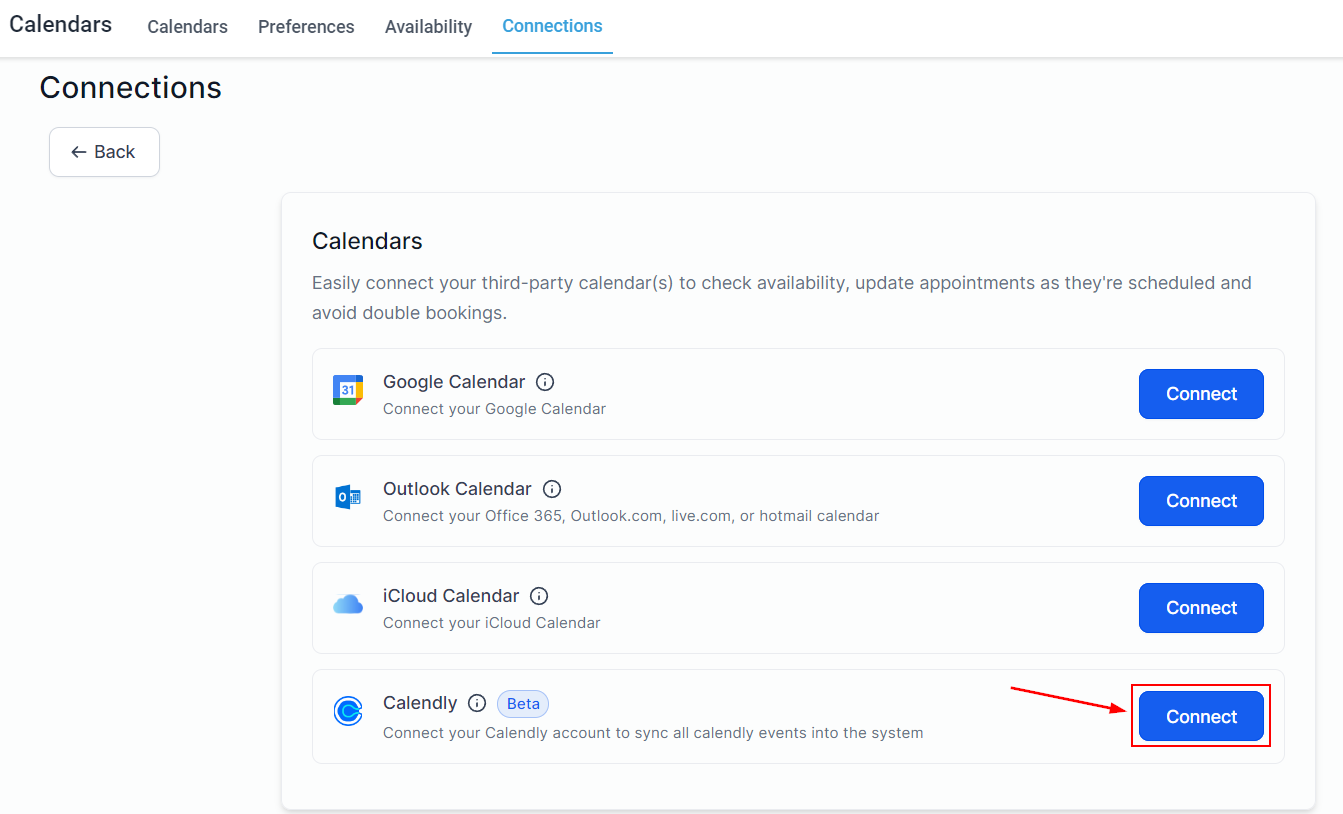
3. Connect Calendly: Find Calendly in the list and click the "Connect" button.
\
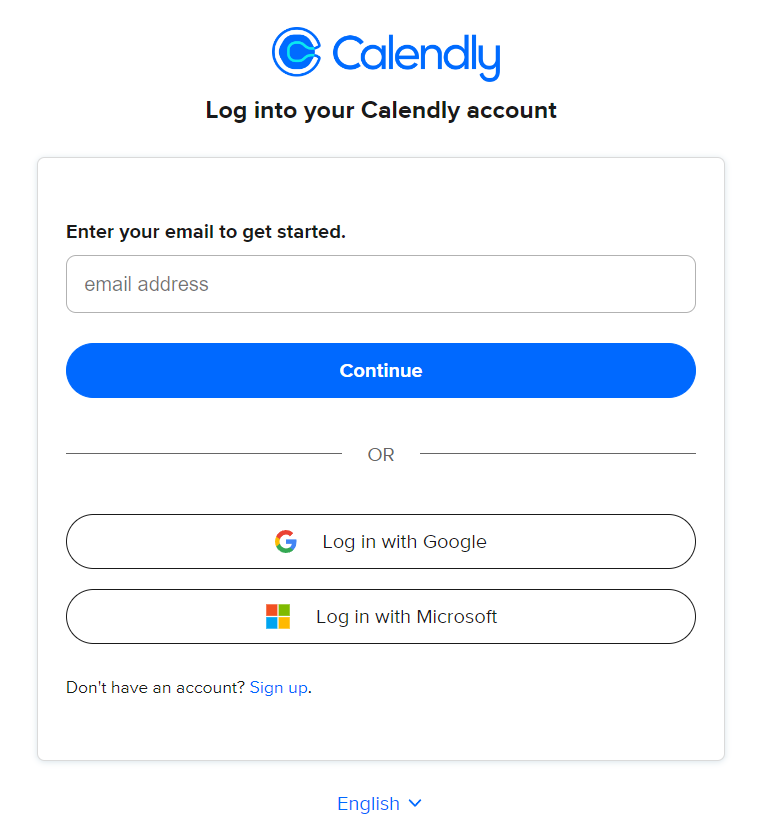
4. Sign In to Calendly: A pop-up window will appear prompting you to sign in to your Calendly account. Provide the necessary permissions to proceed.
\
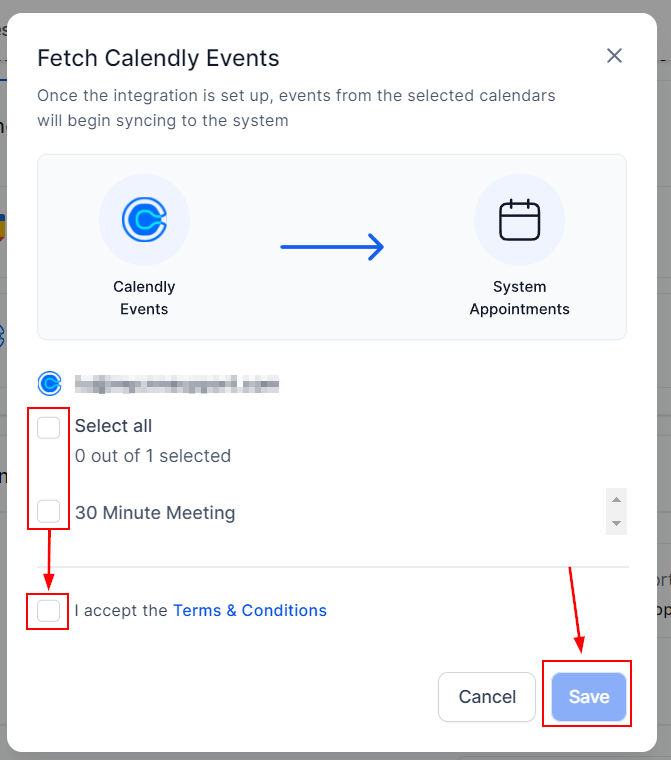
5. Select Calendars and Save: After connecting your account, you'll be asked to choose which calendars you want to sync. Agree to the terms and conditions, then click "Save" to complete the setup.
\
\
? Note: Only events created in the chosen calendars after setting up the integration will be imported into the CRM.
Now, your CRM and Calendly are successfully linked, allowing you to continue using Calendly for scheduling while benefiting from enhanced follow-up capabilities and automation features in your CRM.
**Key Considerations**
* One-Way Integration: This integration only flows one way; events from Calendly sync to your CRM, but not vice versa. You won't be able to edit Calendly events directly within the CRM.
* No Sync for Past Events: Appointments scheduled in Calendly before the integration will not sync to your CRM, and only selected calendars will sync.
* Disconnecting Calendars: If you disconnect a calendar, its events will stop syncing. Reconnecting it will only sync new events created afterward, not the ones scheduled during the disconnection period.
By following these steps, you can enhance your scheduling process and make the most of both Calendly and your CRM.
---
# Agent Instructions
This documentation is published with GitBook. GitBook is the documentation platform designed so that both humans and AI agents can read, navigate, and reason over technical content effectively. Learn more at gitbook.com.
## Querying This Documentation
If you need additional information that is not directly available in this page, you can query the documentation dynamically by asking a question.
Perform an HTTP GET request on the current page URL with the `ask` query parameter:
```
GET https://help.ourarea.in/ss/calendars/calendar-settings/settings-calender/integrating-calendly-with-your-crm.md?ask=
```
The question should be specific, self-contained, and written in natural language.
The response will contain a direct answer to the question and relevant excerpts and sources from the documentation.
Use this mechanism when the answer is not explicitly present in the current page, you need clarification or additional context, or you want to retrieve related documentation sections.