# Connecting Your Google Calendar
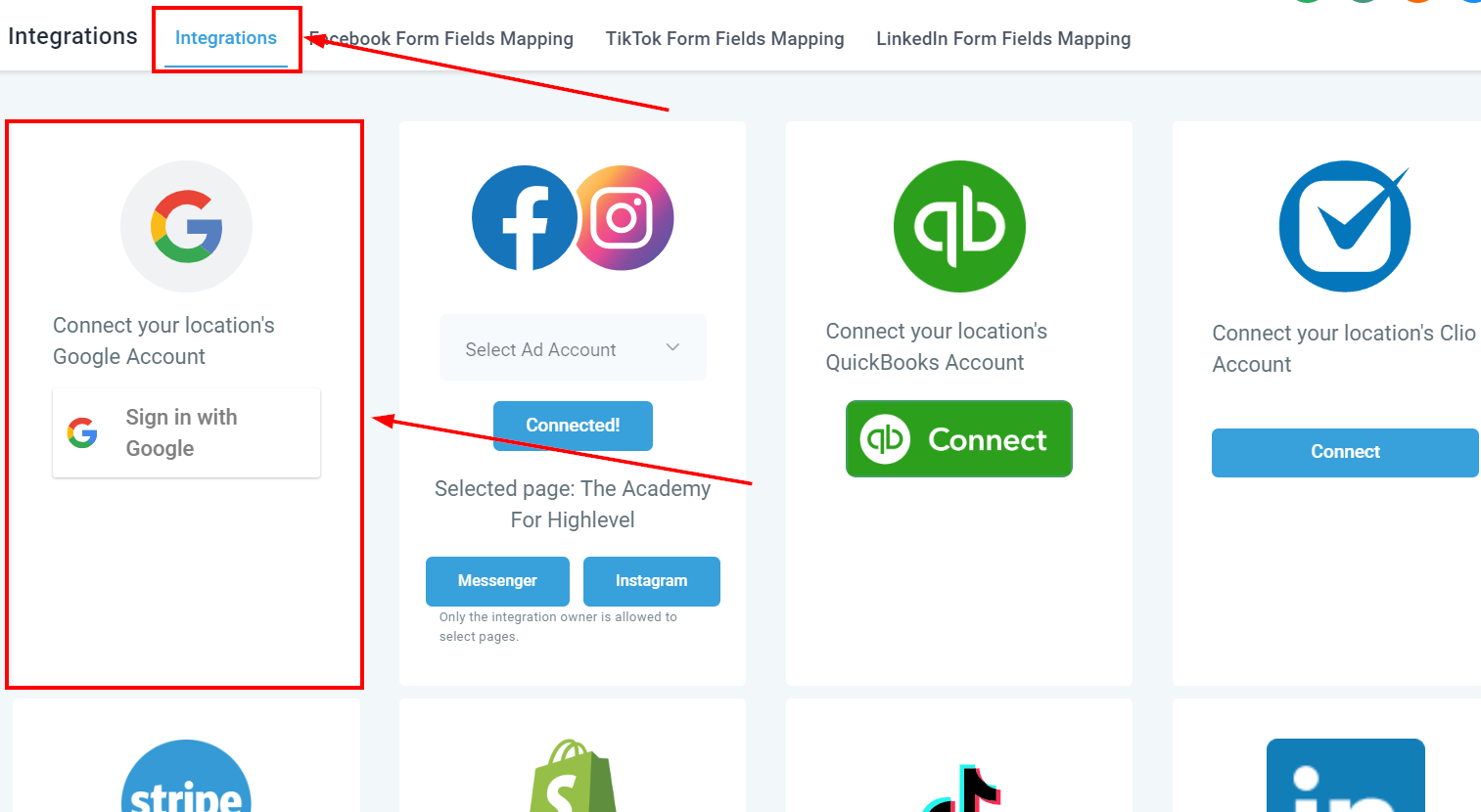
To get started, you'll need to link your Google account. Begin by accessing the Settings on the left-hand menu, followed by selecting Integrations at the top of the page. From here, locate the Google icon and hit the Connect button.
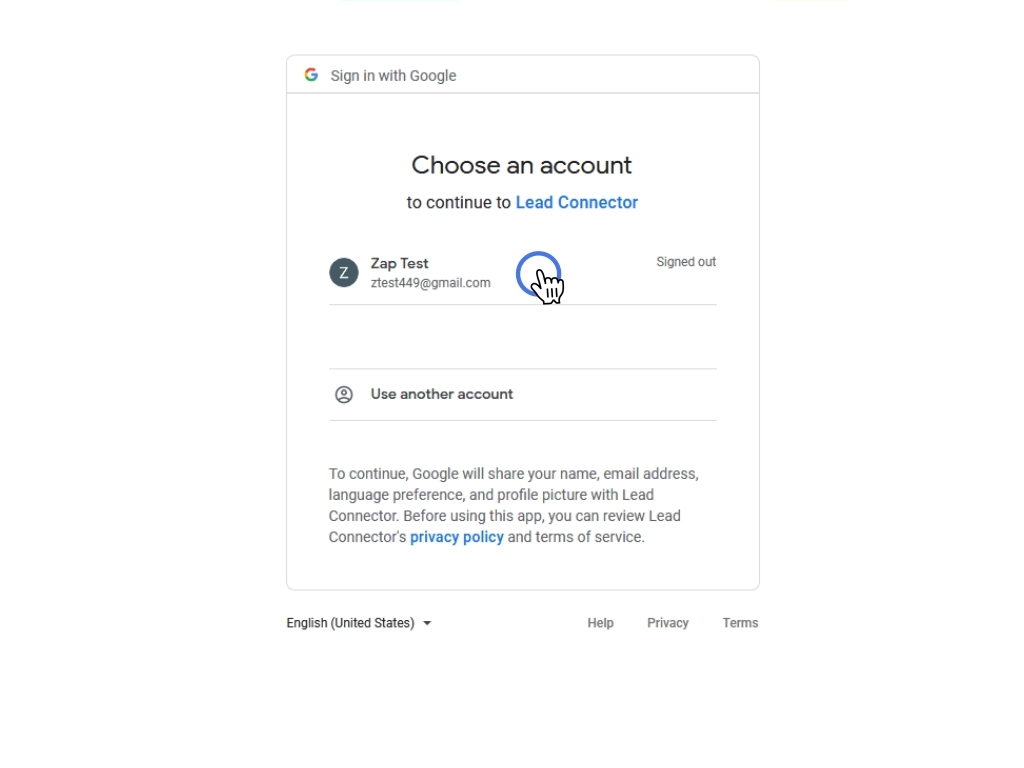
A new window will appear, prompting you to choose the Google account you wish to connect. Select your account, input your Google password, and press Next.
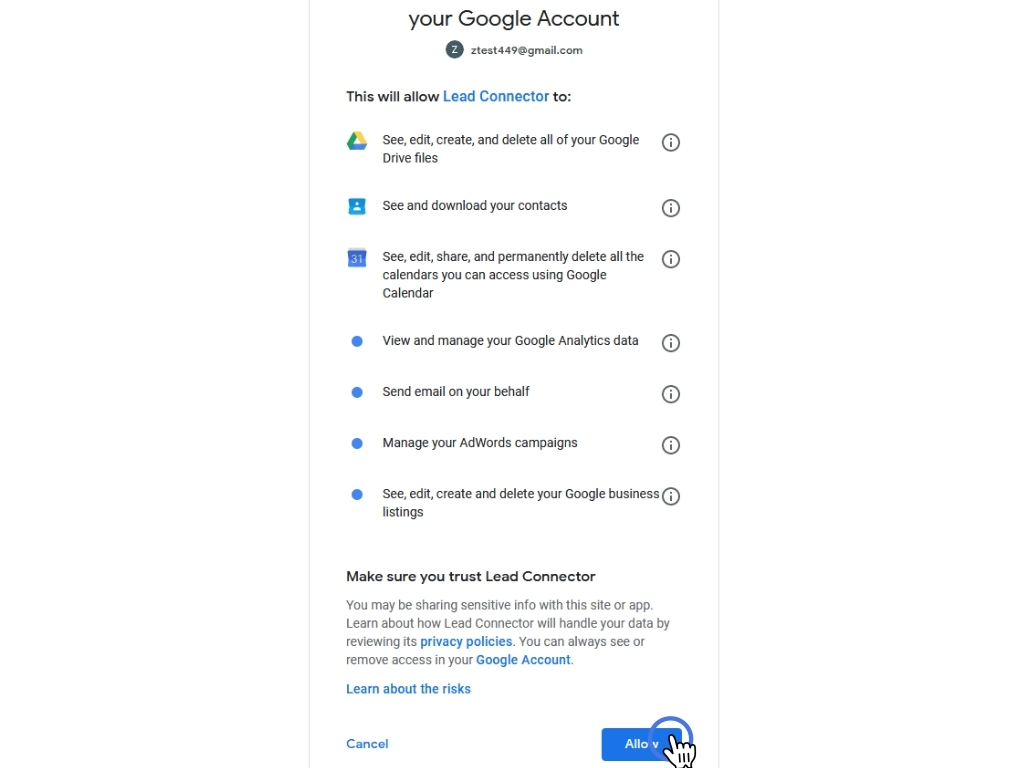
Once your login details are confirmed, click Allow to grant the necessary permissions. Afterward, the window will automatically close, returning you to the CRM platform. Simply click the Close button at the top right.
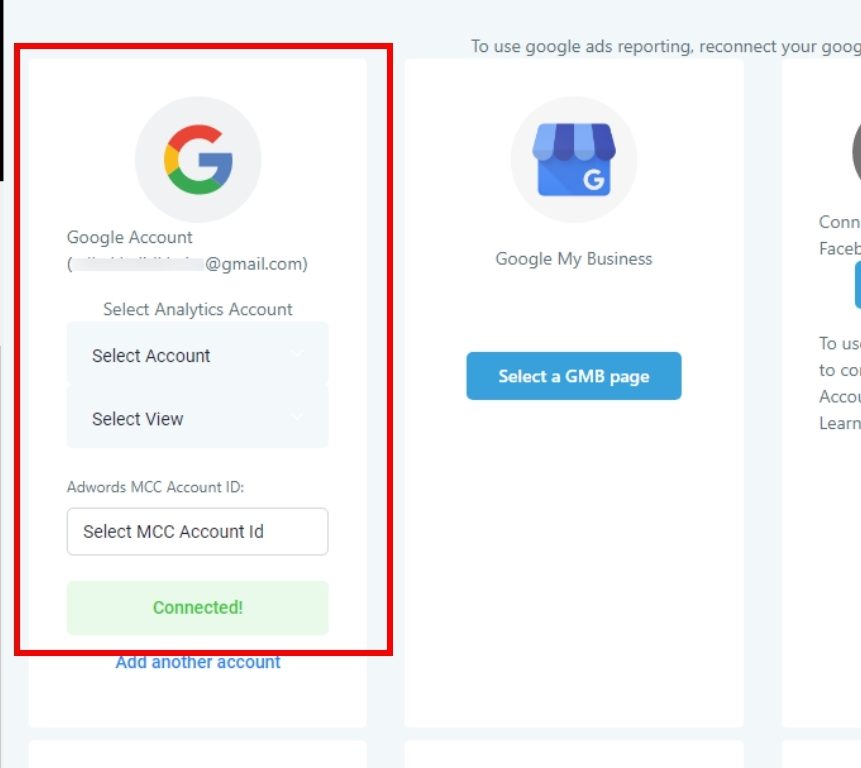
In the Integration Settings, you’ll see confirmation that your Google account is now successfully linked.
####
#### Setting Up Your Calendar
Next, head over to the My Profile section, located within Settings. Scroll down until you see the Calendar Configuration option.
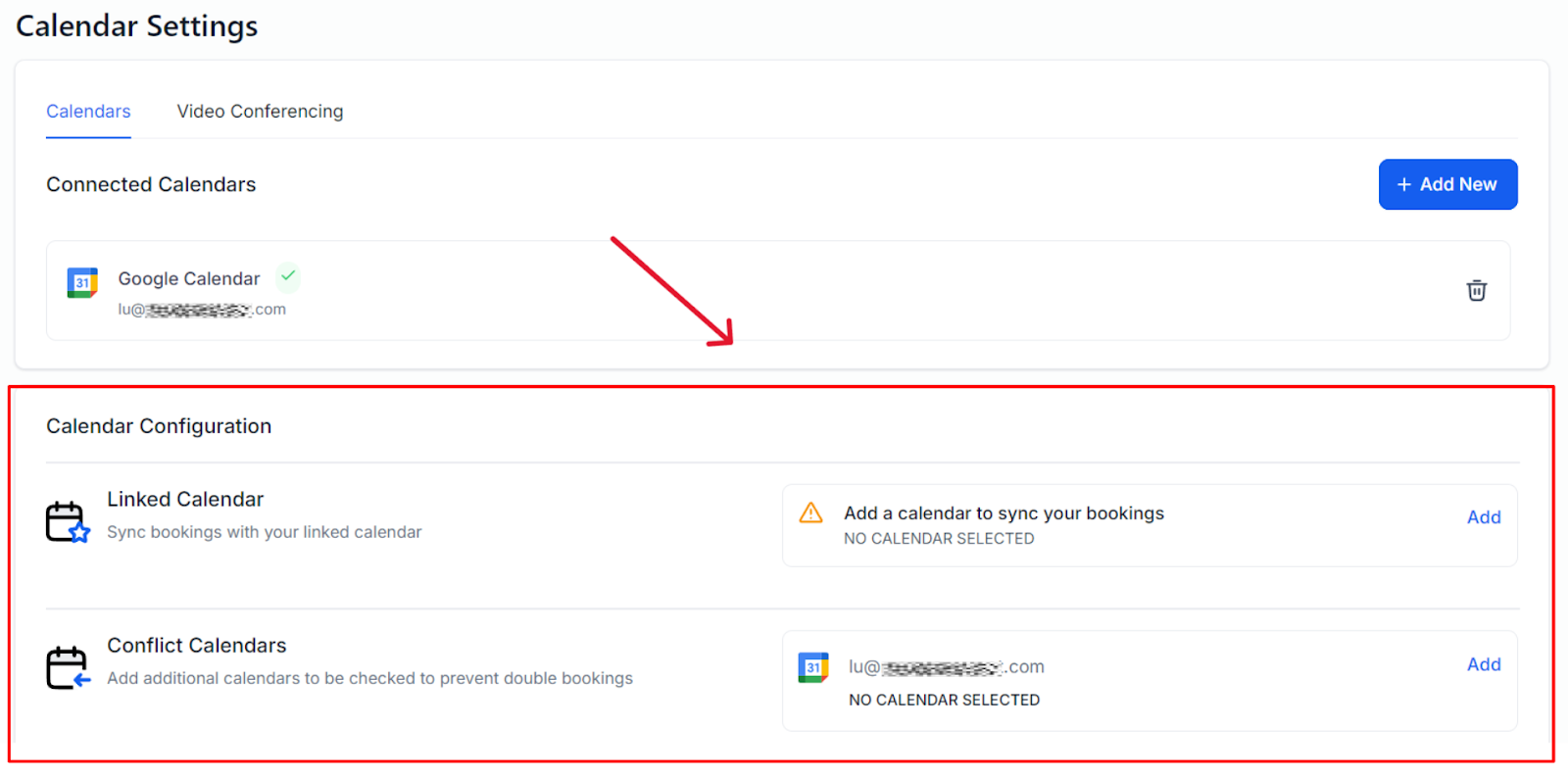
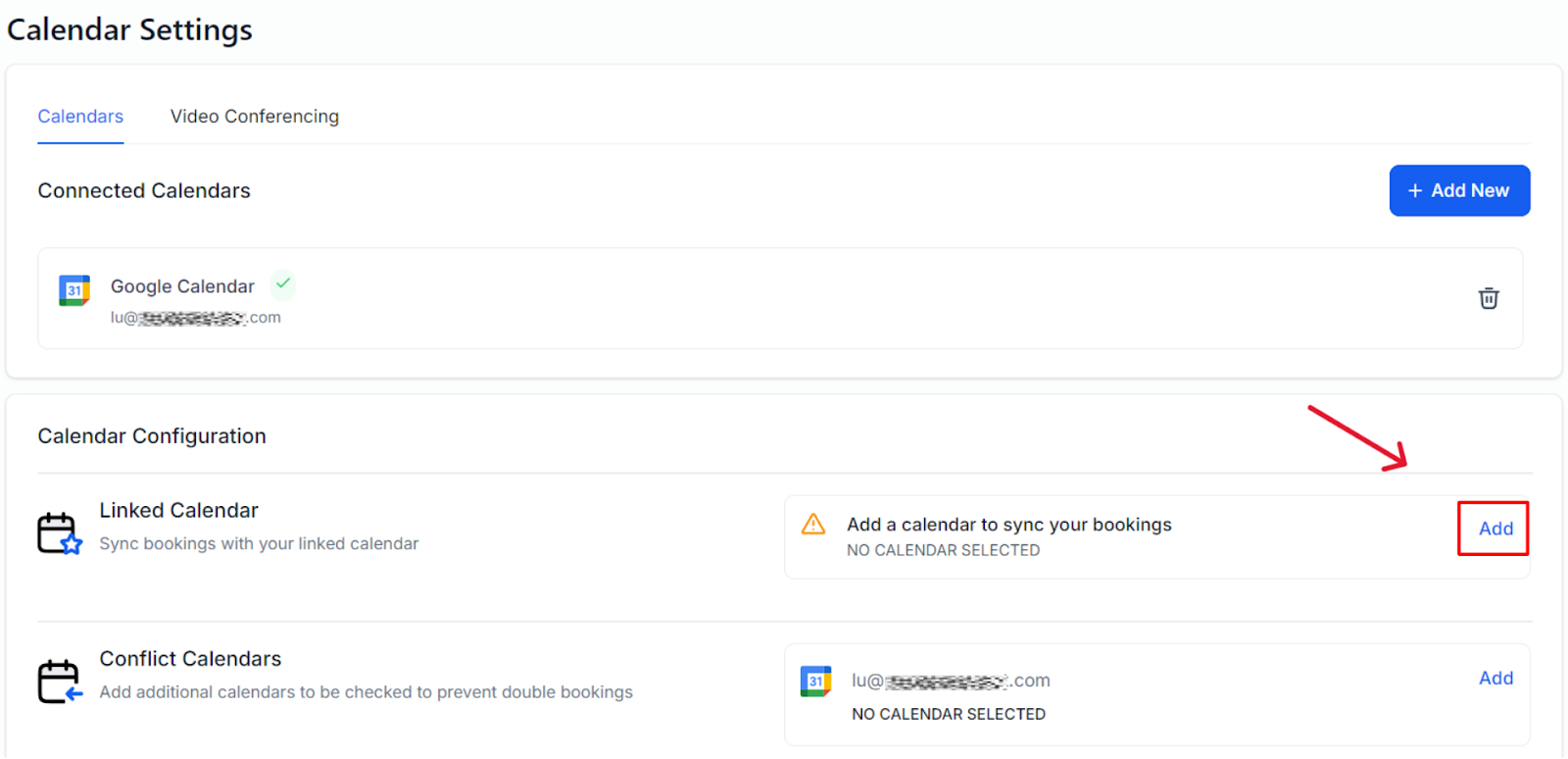
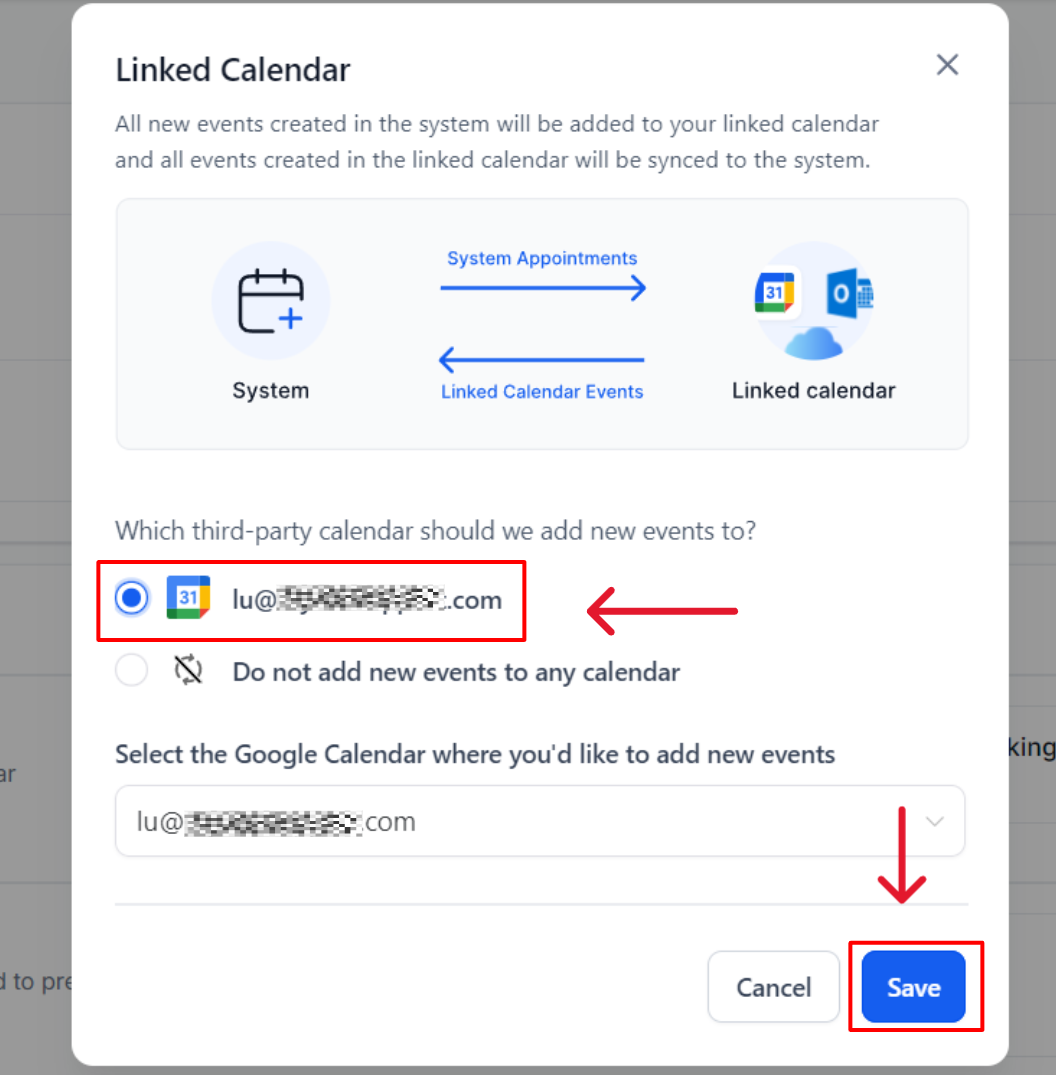
Click the Add button, choose the Google Calendar you just linked, and then click Save. From now on, any appointments assigned to you will automatically sync to this calendar.
####
#### Managing Calendar Conflicts
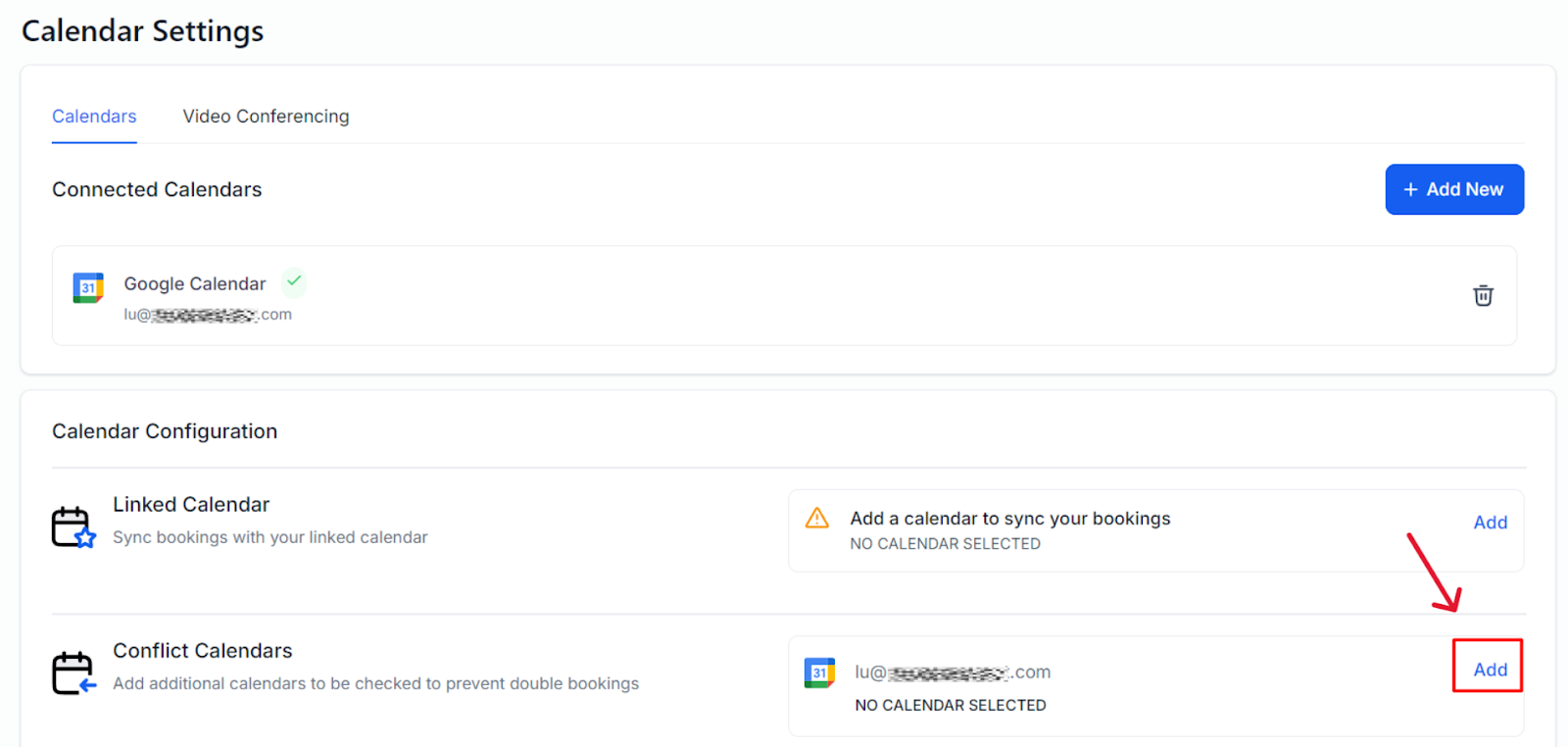
Once your Google Calendar is connected, you can manage scheduling conflicts directly from the system. To do this, click the Add button under the Calendar Conflict section. Select the types of conflicts you'd like to monitor and press Save.
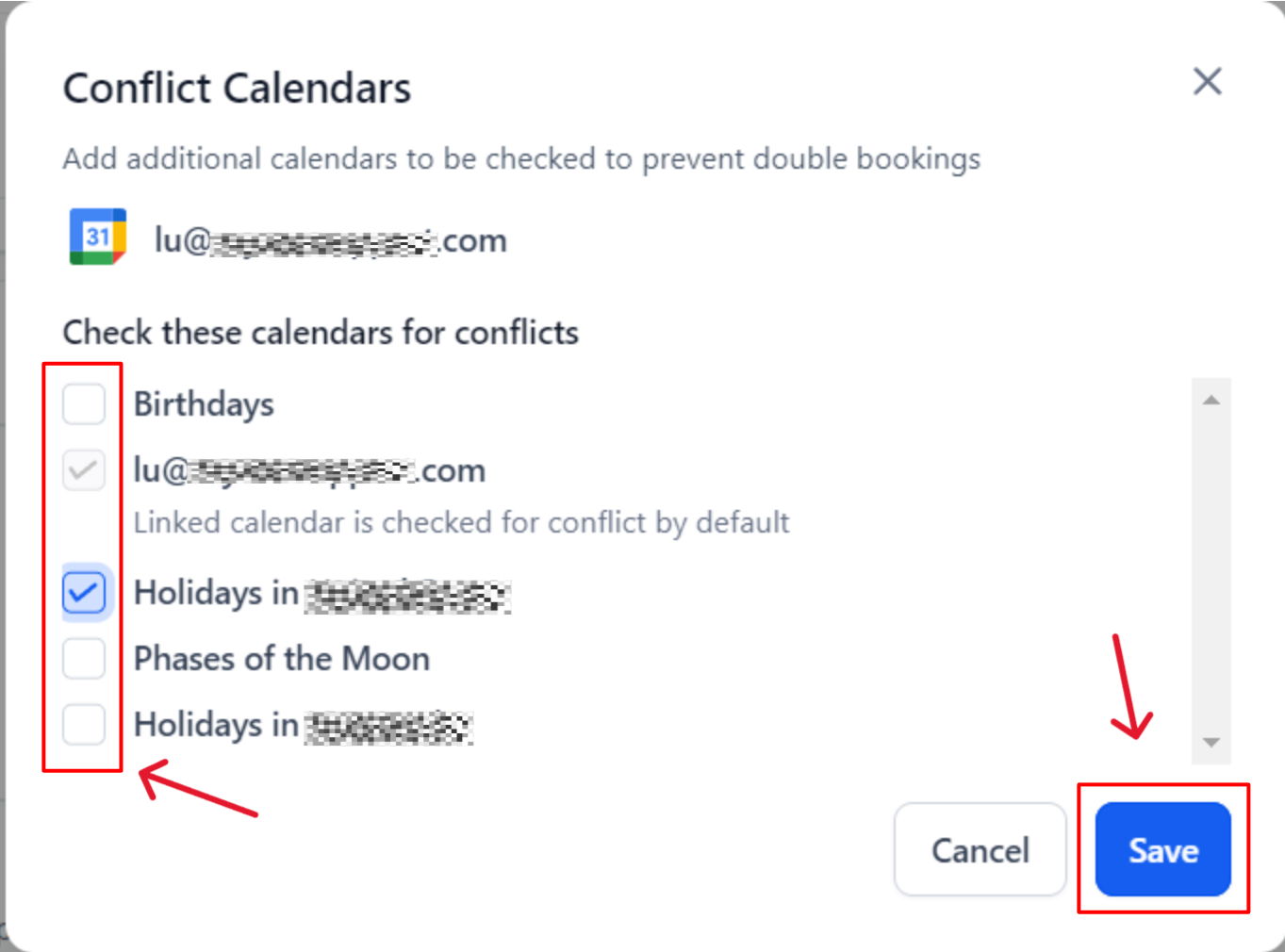
Now you're fully set up with your Google Calendar integration!
---
# Agent Instructions: Querying This Documentation
If you need additional information that is not directly available in this page, you can query the documentation dynamically by asking a question.
Perform an HTTP GET request on the current page URL with the `ask` query parameter:
```
GET https://help.ourarea.in/ss/calendars/calendars-overview/connecting-your-google-calendar.md?ask=
```
The question should be specific, self-contained, and written in natural language.
The response will contain a direct answer to the question and relevant excerpts and sources from the documentation.
Use this mechanism when the answer is not explicitly present in the current page, you need clarification or additional context, or you want to retrieve related documentation sections.