# How to Utilize Text 2 Pay for Seamless Payment Collection
Follow this guide to effortlessly begin using Text 2 Pay for collecting payments.
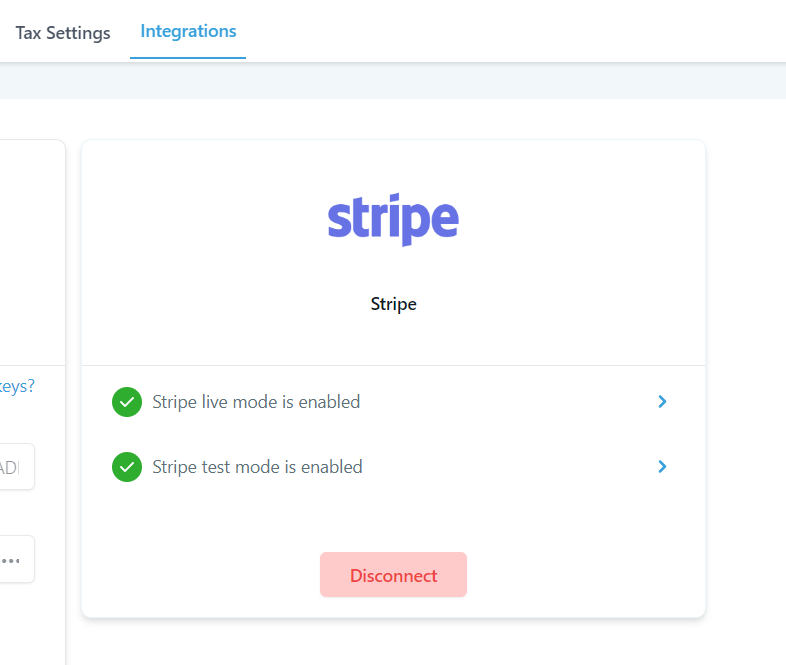
**Ensure Stripe is Connected**
Before you can start receiving payments via Text 2 Pay, confirm that your Stripe account is linked. Navigate to the Payments section, then head over to Integrations to complete the setup.
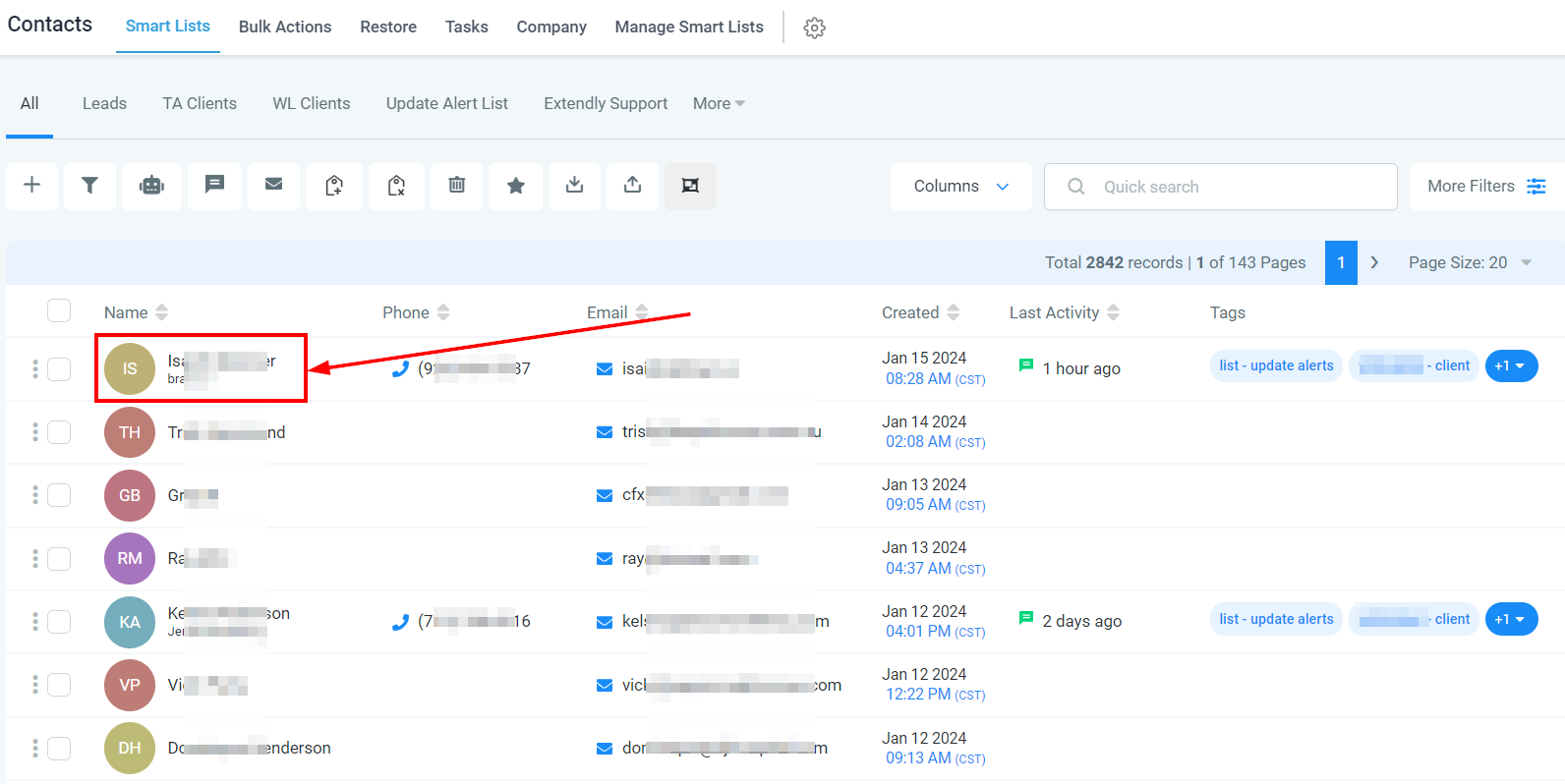
**How to Use Text 2 Pay – Accessing Contacts and Conversation Tabs**
Begin by visiting your Contacts tab. Select the specific contact for whom you wish to send a payment link.
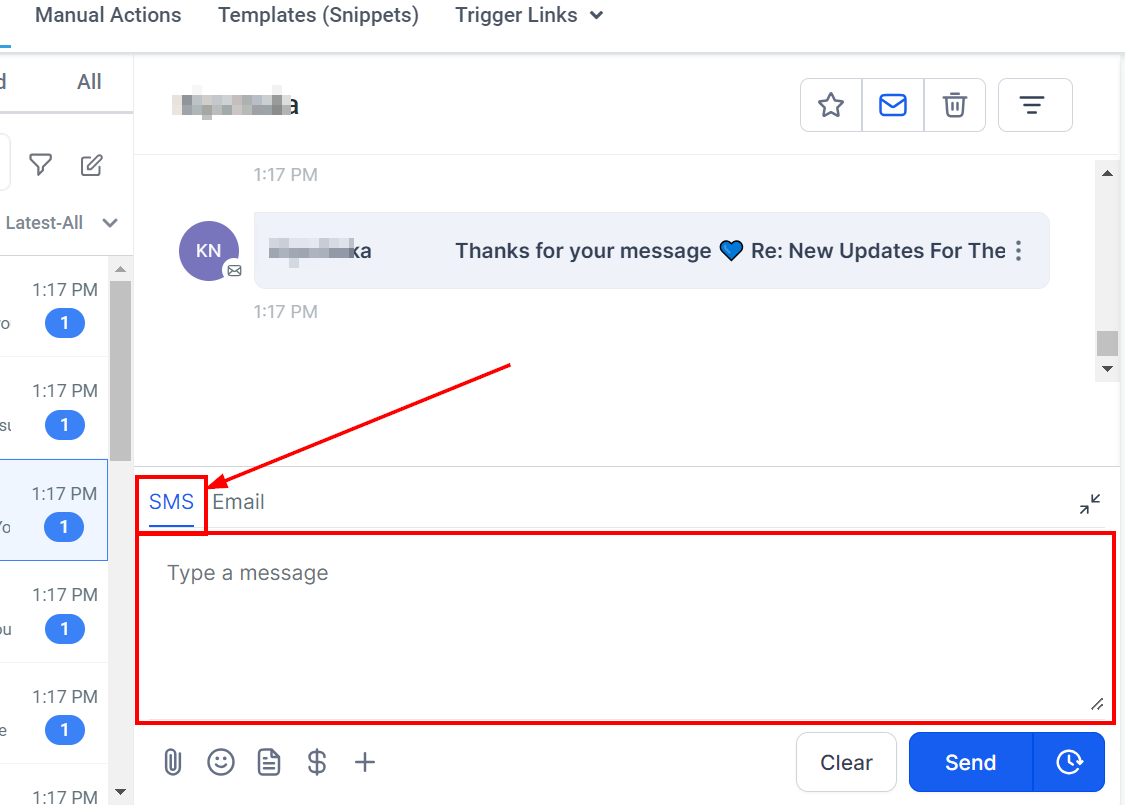
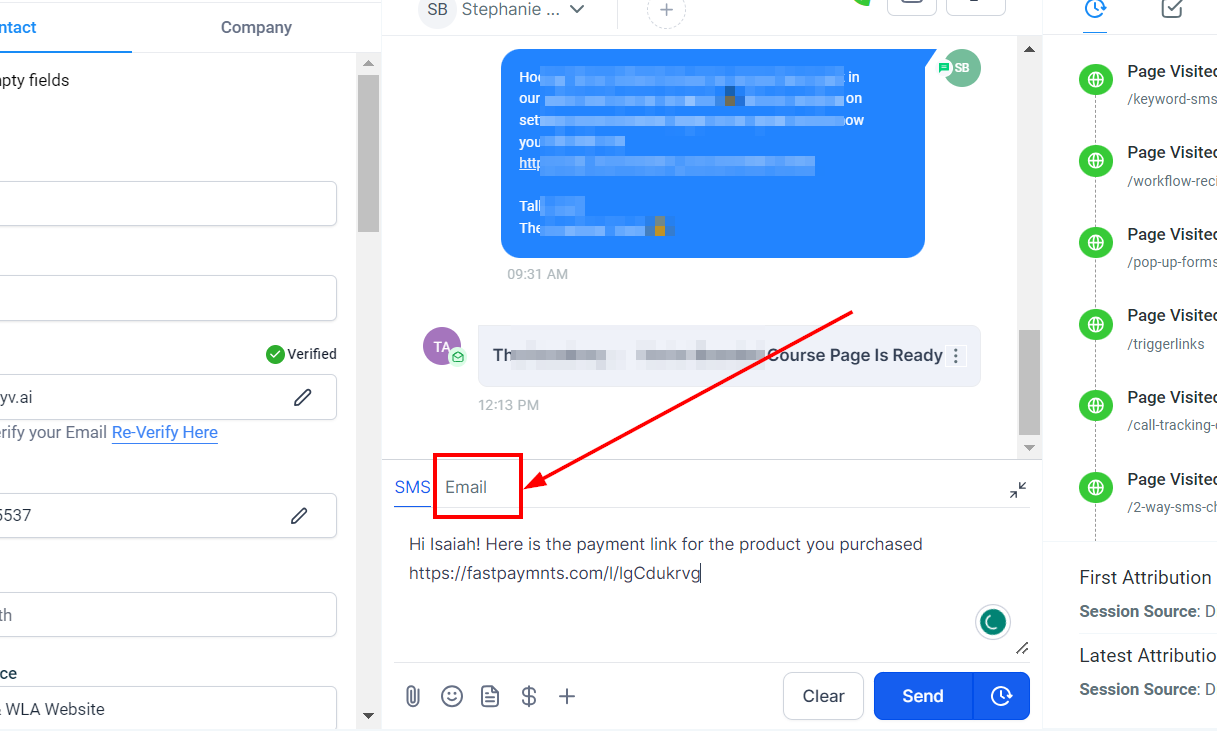
**Choose Your Communication Method: SMS or Email**
Decide whether to send the payment link via SMS or Email. In this example, we will use SMS.
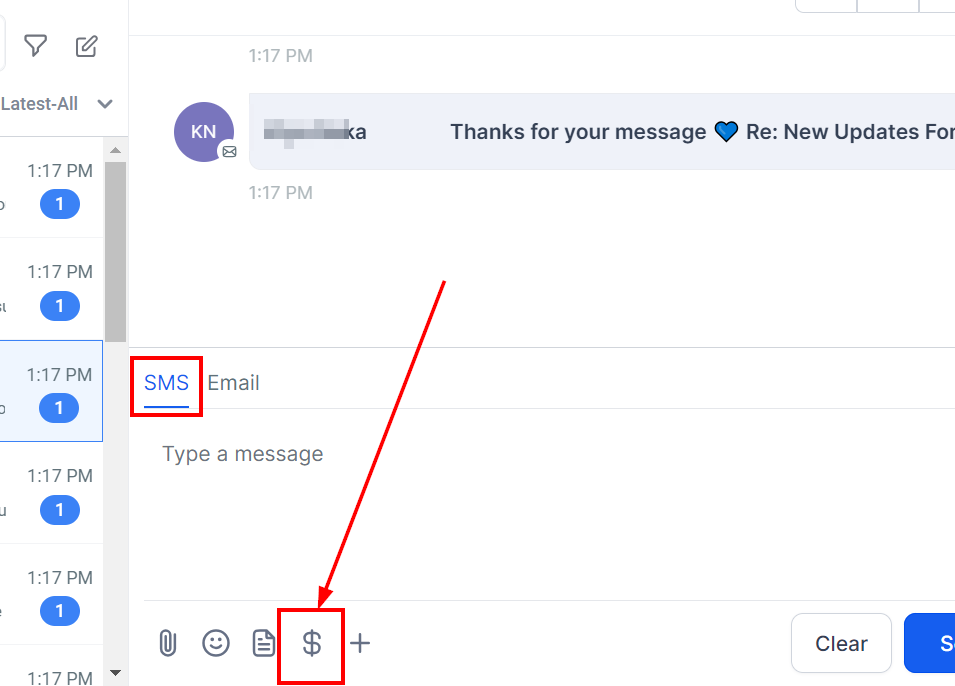
**Requesting a Payment**
Next, click on the "Request Payment" icon to initiate the payment request.
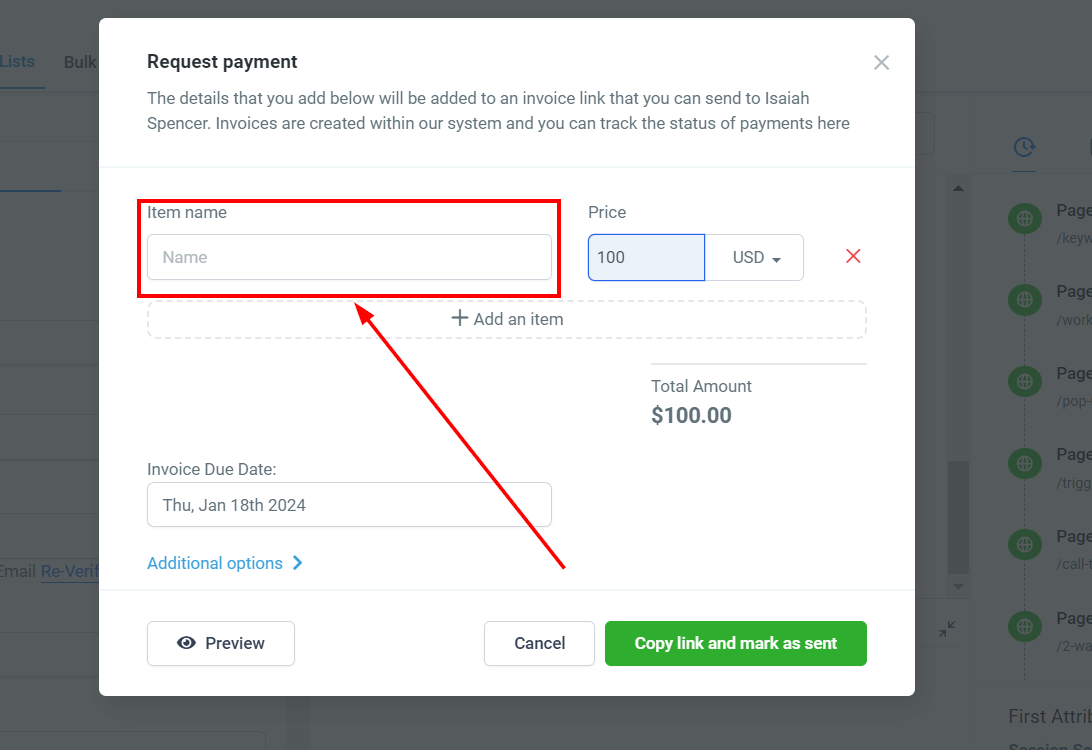
**Input the Item Name**
In the pop-up that appears, type in the name of the product or service for which you're requesting payment.
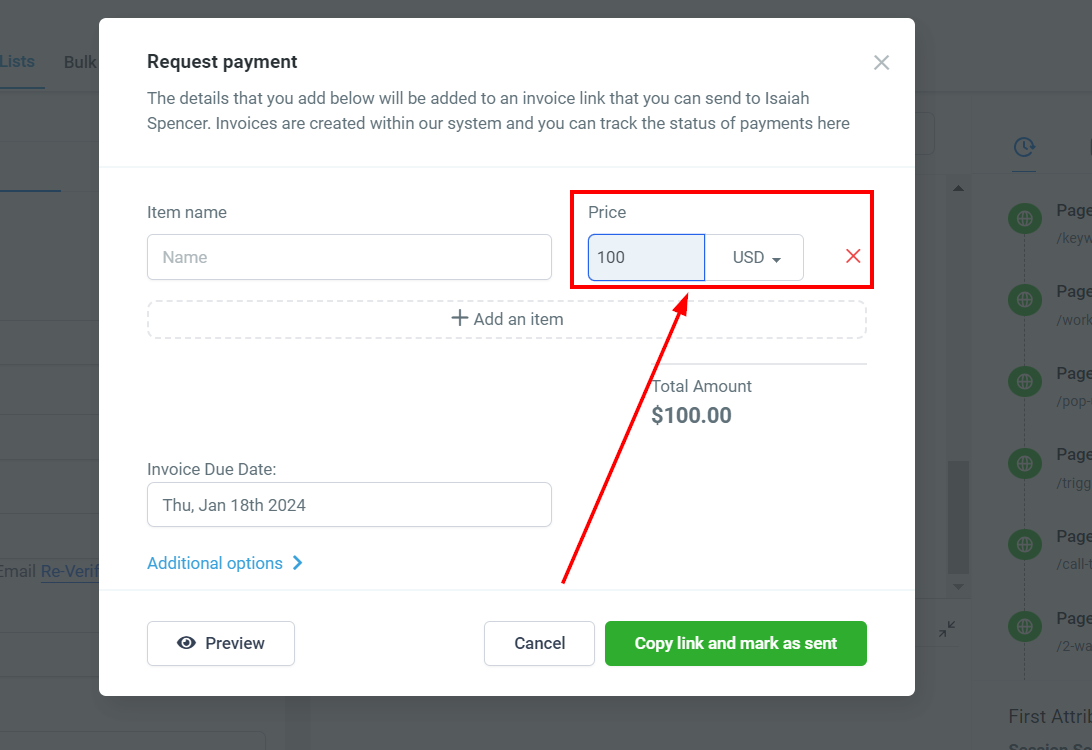
**Set the Price**
Enter the price of the item or service you're billing for.
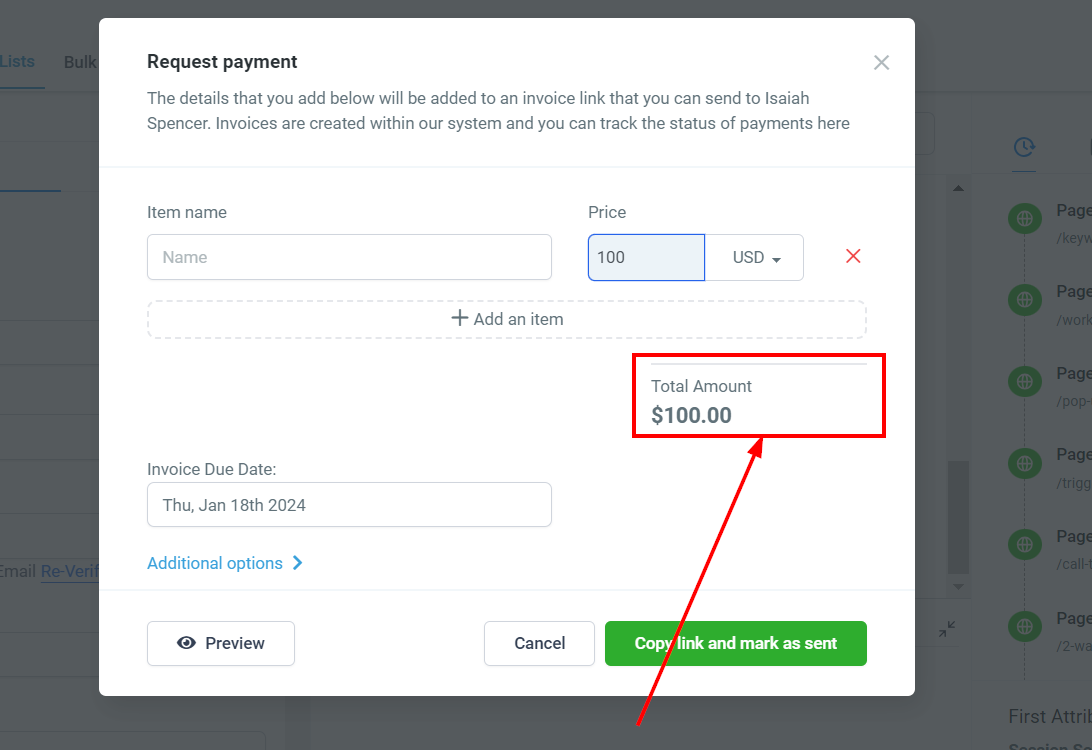
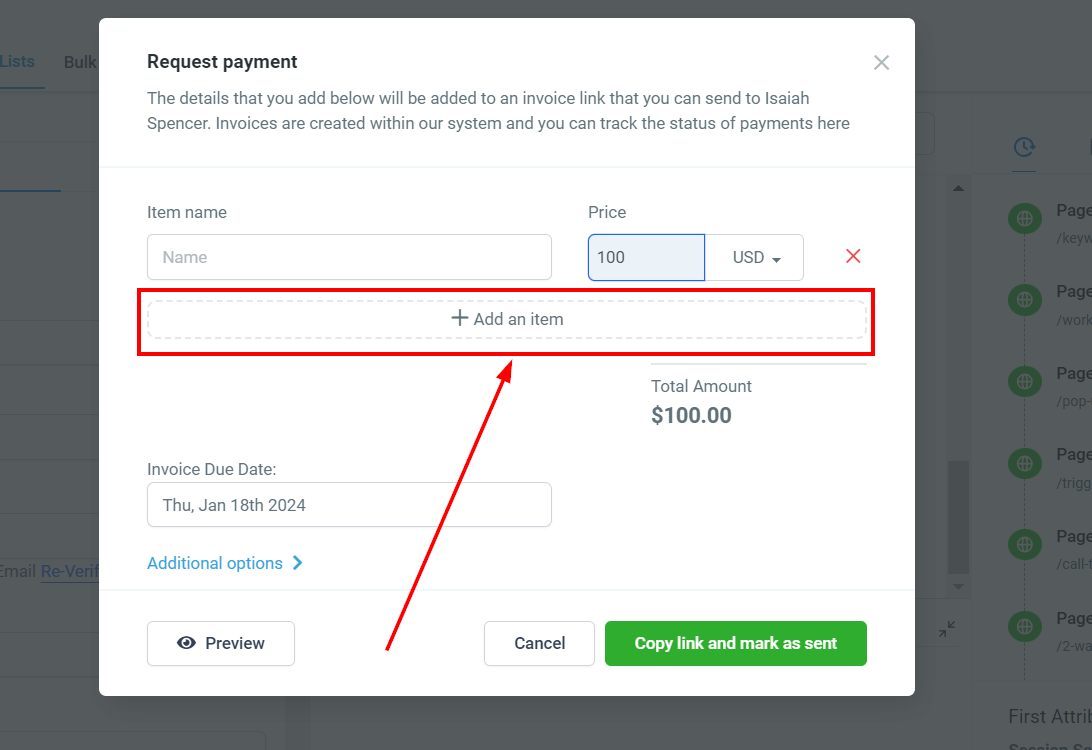
**(Optional) Add Additional Items**
You have the option to include multiple items in the same payment link. The system will automatically calculate and display the total amount due. Your contact will see a breakdown of all items included in the invoice.
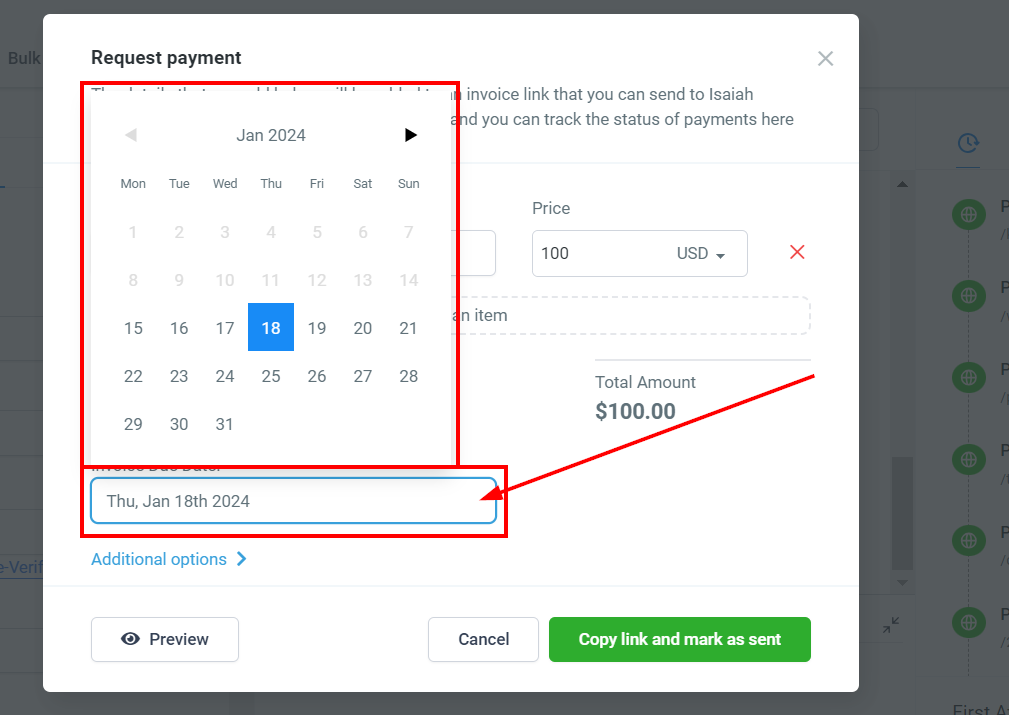
**Set an Invoice Due Date**
Select a due date for the payment.
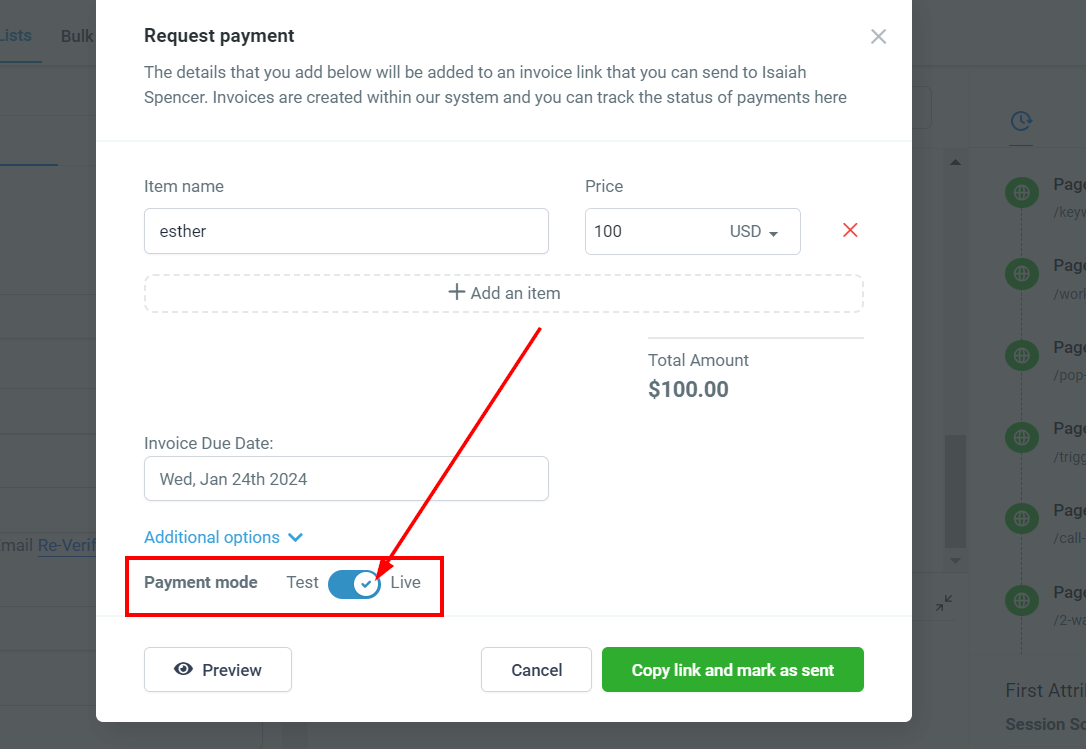
**Explore Additional Options**
Click on Additional Options and ensure the "Live" toggle is enabled.
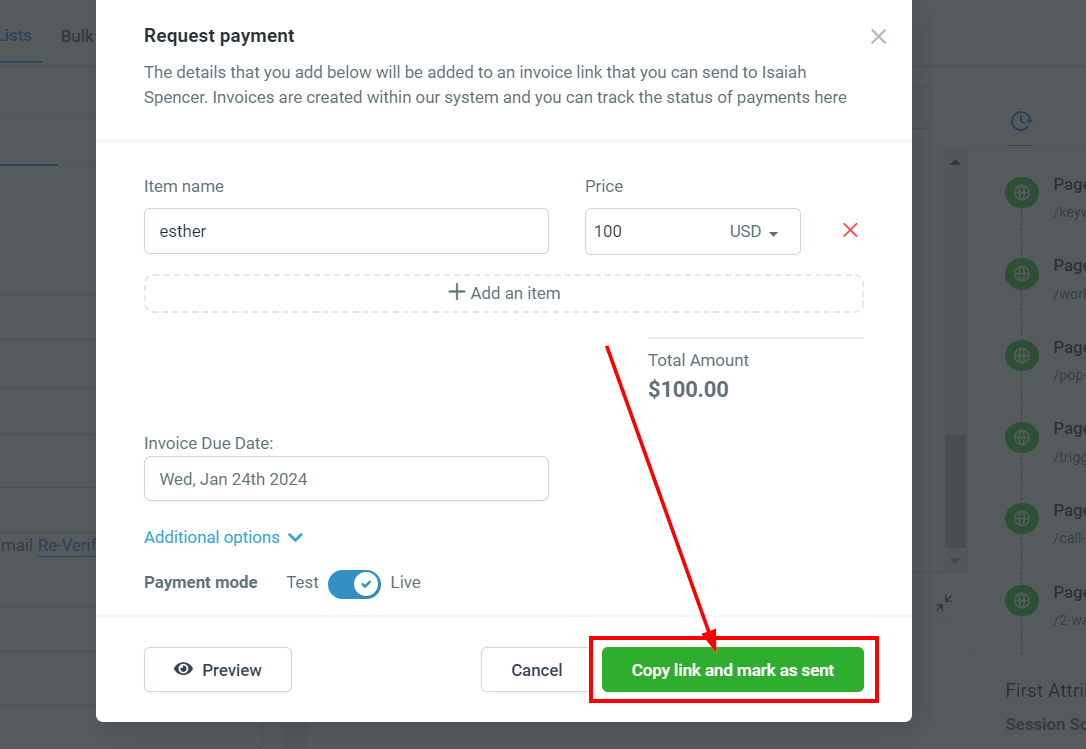
**Save and Copy the Link**
After you've made all the necessary adjustments, copy the payment link and mark it as sent.
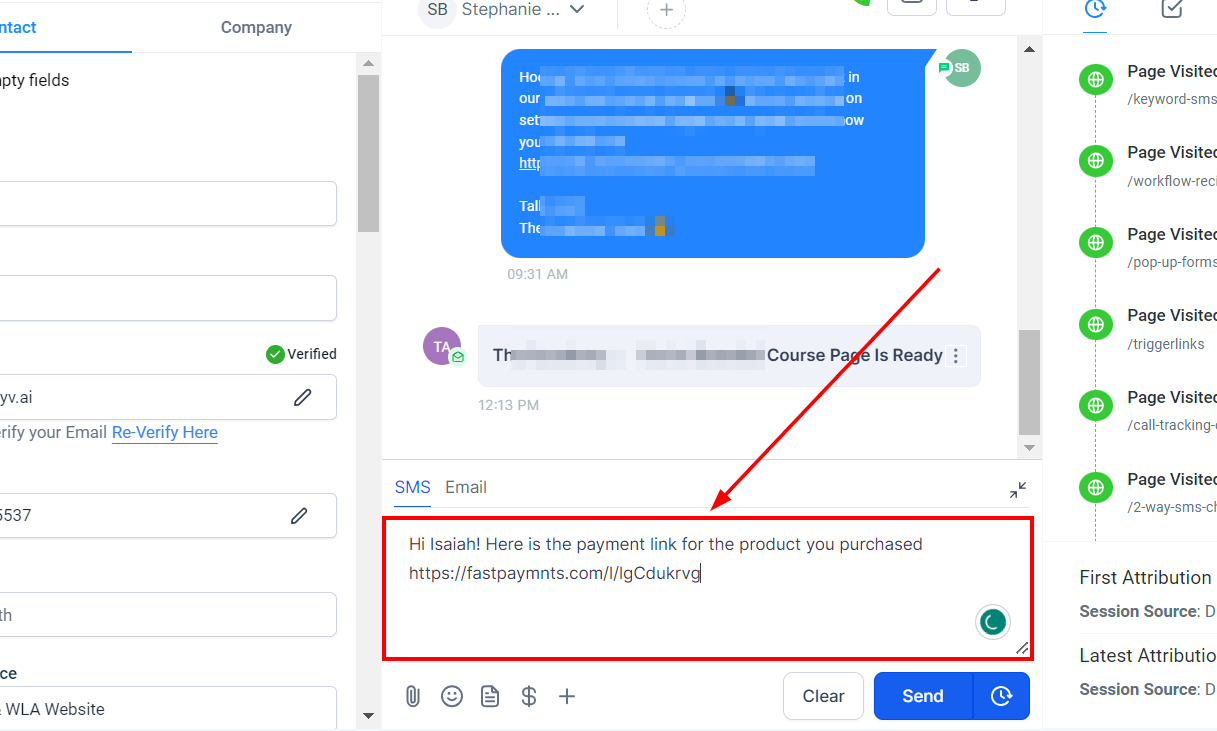
**Customize Your Message**
You can now edit the accompanying message before sending out the payment link.
**Sending via Email**
If you prefer to send the payment link through email, simply follow the same steps outlined above. Just make sure to select Email as the communication method and customize your message accordingly.
**Final Step: Send It!**
Once you're satisfied with your message, click on Send to deliver the payment request.
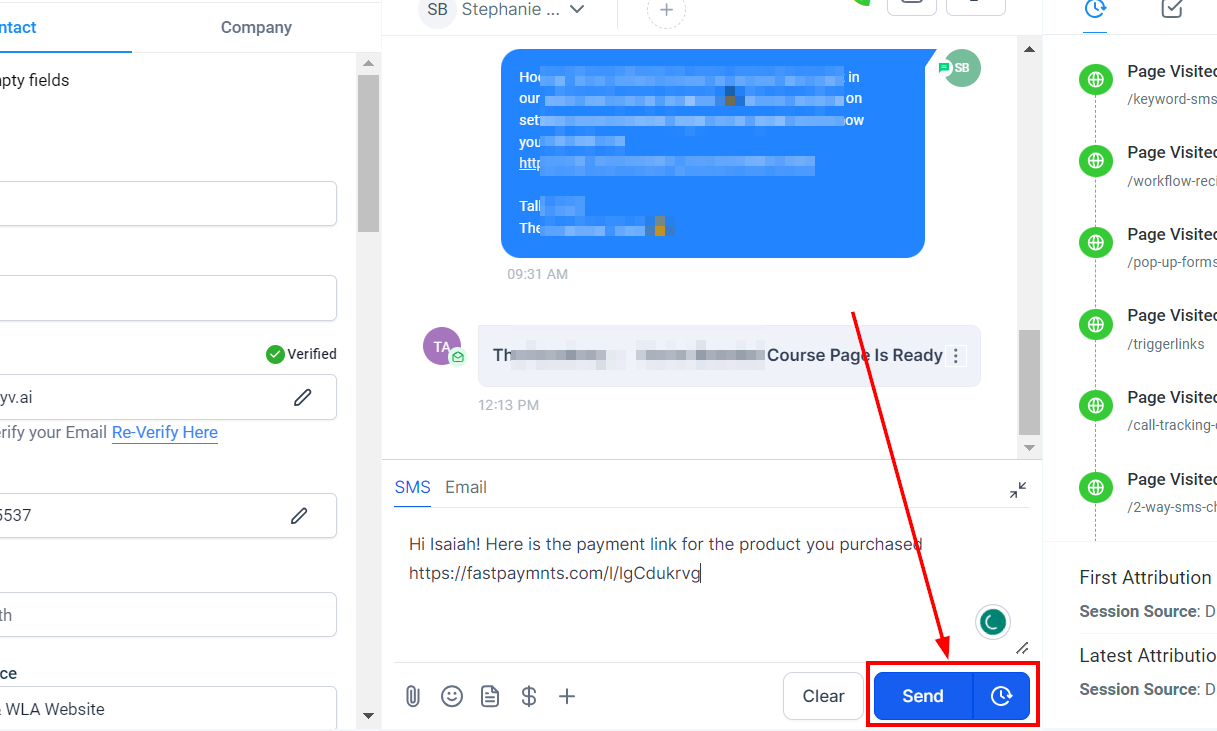
Note: When using Text 2 Pay, an invoice is generated automatically.
---
# Agent Instructions: Querying This Documentation
If you need additional information that is not directly available in this page, you can query the documentation dynamically by asking a question.
Perform an HTTP GET request on the current page URL with the `ask` query parameter:
```
GET https://help.ourarea.in/ss/conversations/how-to-utilize-text-2-pay-for-seamless-payment-collection.md?ask=
```
The question should be specific, self-contained, and written in natural language.
The response will contain a direct answer to the question and relevant excerpts and sources from the documentation.
Use this mechanism when the answer is not explicitly present in the current page, you need clarification or additional context, or you want to retrieve related documentation sections.