> For the complete documentation index, see [llms.txt](https://help.ourarea.in/llms.txt). Markdown versions of documentation pages are available by appending `.md` to page URLs; this page is available as [Markdown](https://help.ourarea.in/ss/overview/dashboard-overview/dashboard-access-control.md).
# Dashboard Access Control
Dashboards serve as vital tools for tracking performance and making informed decisions. To improve user experience and security, the platform offers advanced, customizable permissions for dashboard access, allowing greater control over who can view, modify, and manage dashboards. This functionality enables users to tailor their dashboard settings to meet their specific needs, whether prioritizing privacy or facilitating collaborative efforts.
**Permission Levels Explained**
There are four distinct levels of dashboard permissions available:
1. FULL ACCESS: Users with this level can create, edit, share, and delete dashboards.
2. EDIT ACCESS: This level allows users to modify the dashboard and its widgets but does not permit deletion.
3. VIEW ACCESS: Users can only view the dashboard without making any changes.
4. NO ACCESS: Users are entirely restricted from viewing or interacting with the dashboard.
**How to Manage Dashboard Permissions**
**Setting Permissions for New Dashboards**
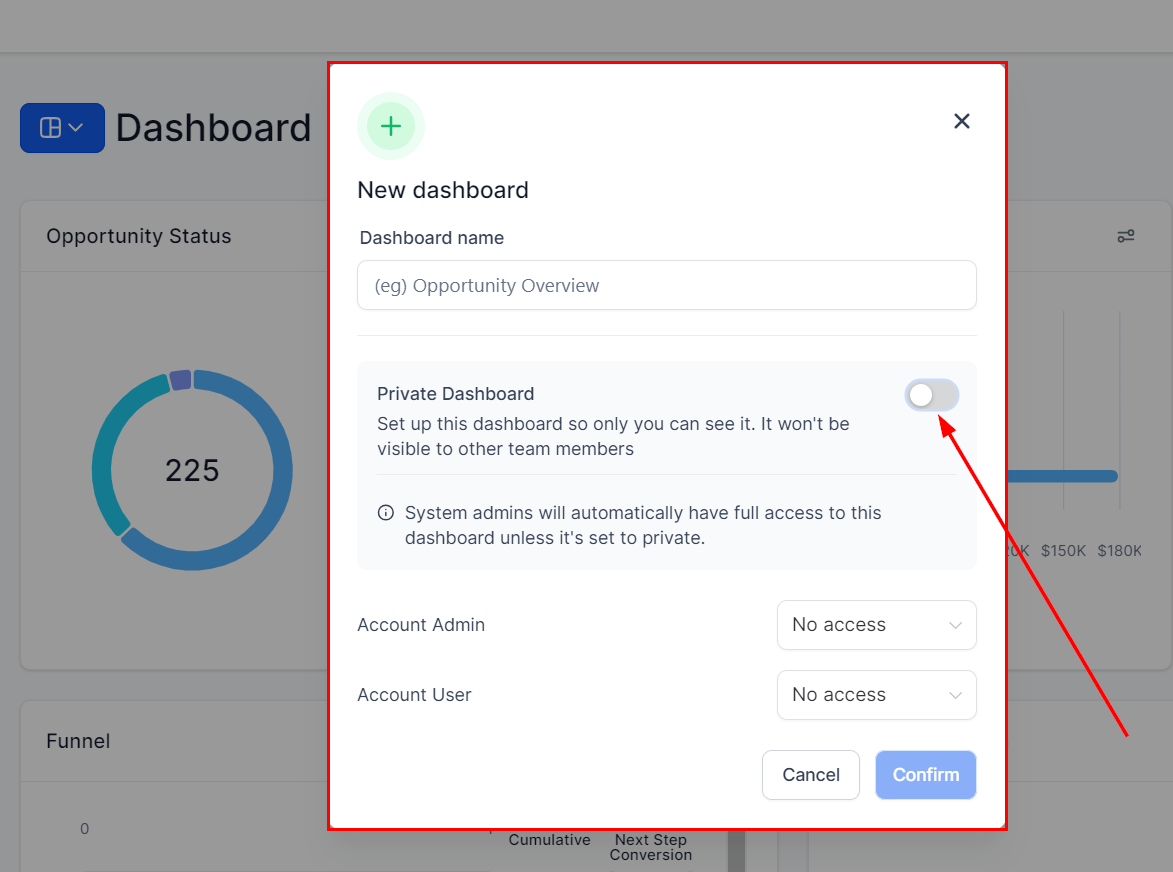
When creating a new dashboard, you can specify the desired permissions:
1. Customize During Creation: Set the appropriate permissions as part of the dashboard creation process.
2. Enable Private Mode: If you require a private dashboard, toggle the private setting.
**Adjusting Permissions for Existing Dashboards**
To manage permissions on an existing dashboard:
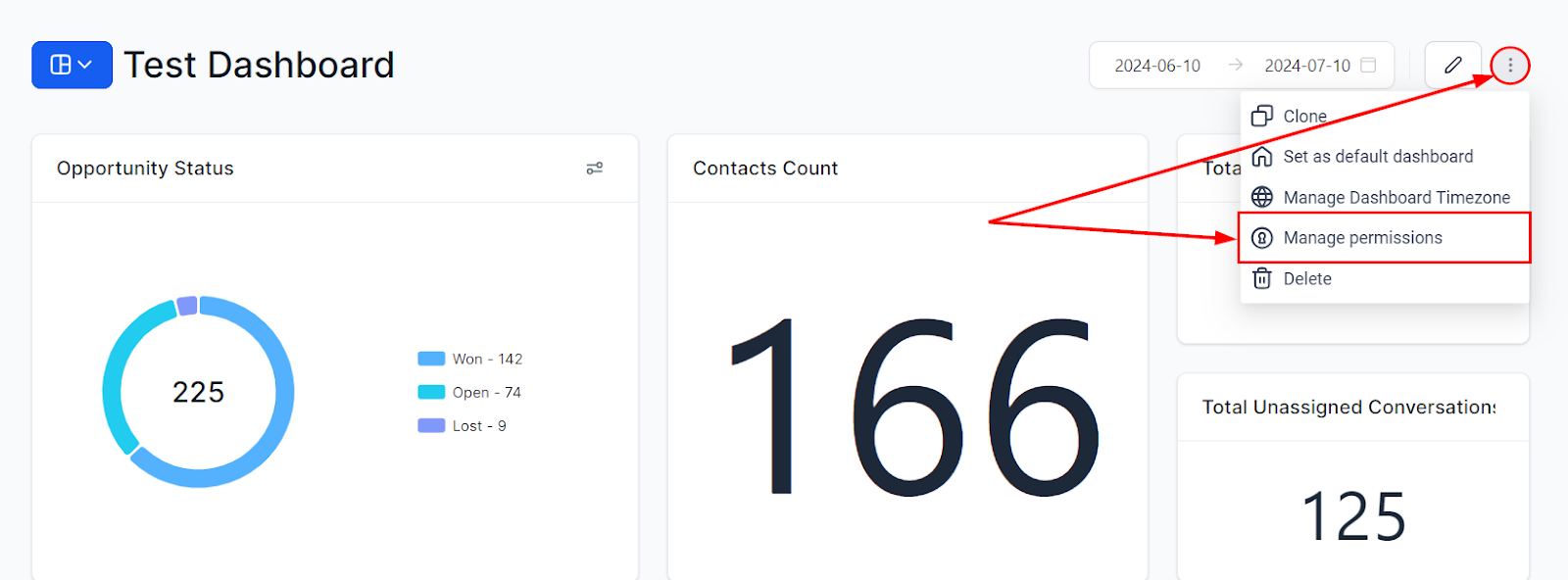
1. Access the Dashboard:
* Click on the three dots located in the upper right corner of the dashboard.
* Select "Manage Permissions" from the dropdown menu.
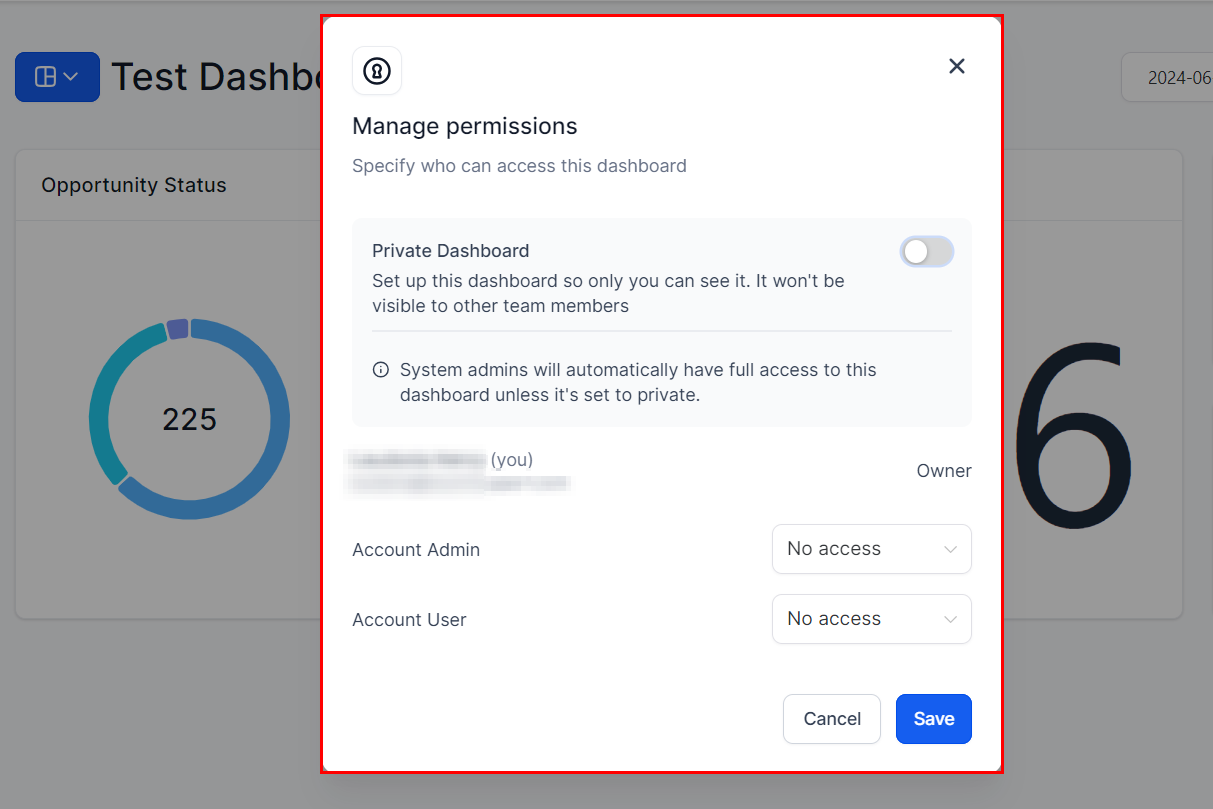
2. Update Permissions:
* Toggle the private setting if necessary.
* Assign the appropriate permission level to each user.
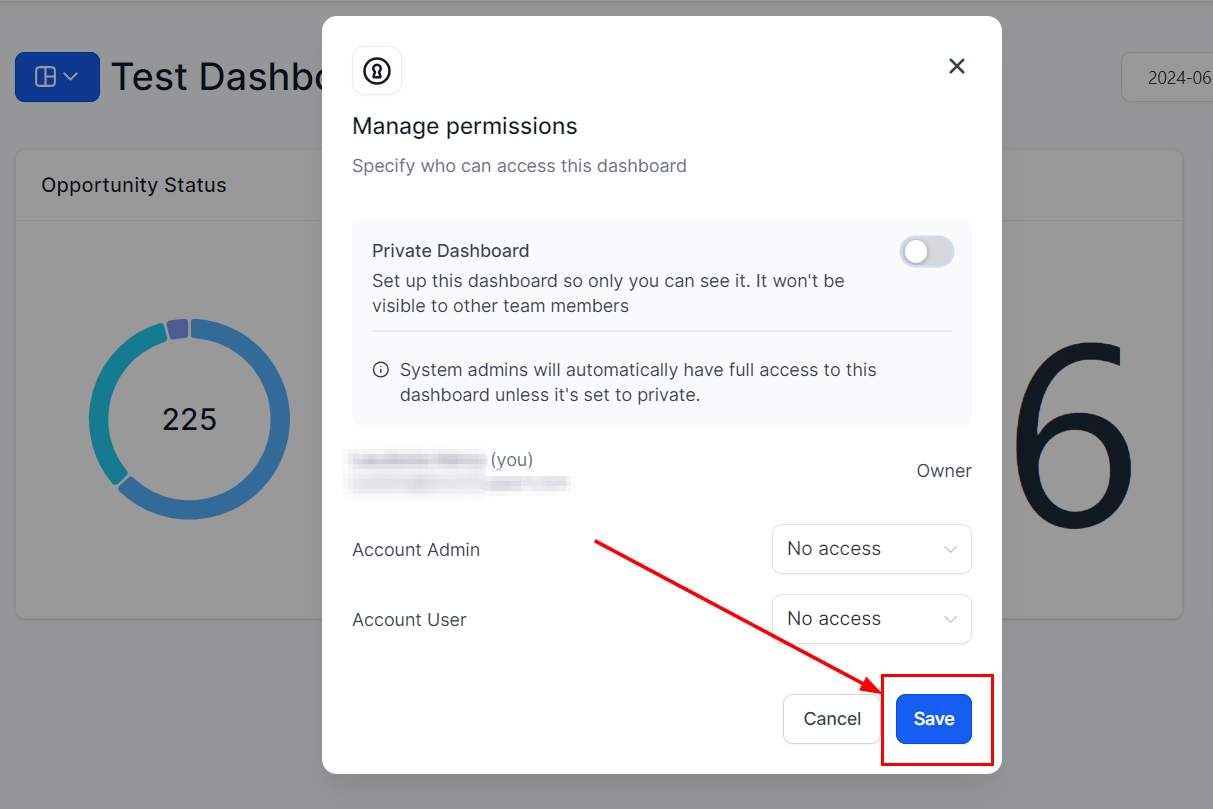
3. Save Your Changes:
* Click "Save" to apply the updates.
**Why These Permissions Matter**
* Personalized Access Control: Tailor access permissions to fit your specific requirements, ensuring that only authorized users have the appropriate level of access.
* Enhanced Security: Restrict access to sensitive information by setting precise permissions.
* Optimized Collaboration: Facilitate team collaboration by granting the right access levels, improving workflow efficiency.
**Frequently Asked Questions**
Q: How do I assign permissions when creating a dashboard?\
A: During the dashboard creation process, you'll have the option to set permissions. You can also toggle the private option if necessary.
Q: Can I modify permissions for an existing dashboard?\
A: Yes, you can update permissions by clicking the three dots in the dashboard's top right corner and selecting "Manage Permissions."
Q: What permission levels are available?\
A: The available levels are FULL ACCESS (create, edit, share, delete), EDIT ACCESS (edit only), VIEW ACCESS (read-only), and NO ACCESS (no access).
Q: How does role hierarchy influence permissions?\
A: The system automatically adjusts permissions based on role hierarchy, ensuring that lower-level roles do not have higher access privileges than upper-level roles.
**Troubleshooting Common Issues**
* Issue: Unable to modify dashboard permissions.\
Solution: Ensure you have sufficient privileges to manage the dashboard. Check if role hierarchy constraints are affecting your ability to update permissions.
* Issue: Changes to permissions are not being saved.\
Solution: Confirm that you clicked "Save" after making adjustments. If the issue persists, refresh the page and try again.
* Issue: Users are unable to access a dashboard despite having permissions.\
Solution: Verify that the correct permission level has been assigned. Also, check if the dashboard is set to private and adjust the settings if needed.
These advanced permission features empower you to manage your dashboard settings effectively, ensuring a secure, customized, and collaborative experience for all users.
---
# Agent Instructions
This documentation is published with GitBook. GitBook is the documentation platform designed so that both humans and AI agents can read, navigate, and reason over technical content effectively. Learn more at gitbook.com.
## Querying This Documentation
If you need additional information that is not directly available in this page, you can query the documentation dynamically by asking a question.
Perform an HTTP GET request on the current page URL with the `ask` query parameter:
```
GET https://help.ourarea.in/ss/overview/dashboard-overview/dashboard-access-control.md?ask=
```
The question should be specific, self-contained, and written in natural language.
The response will contain a direct answer to the question and relevant excerpts and sources from the documentation.
Use this mechanism when the answer is not explicitly present in the current page, you need clarification or additional context, or you want to retrieve related documentation sections.