> For the complete documentation index, see [llms.txt](https://help.ourarea.in/llms.txt). Markdown versions of documentation pages are available by appending `.md` to page URLs; this page is available as [Markdown](https://help.ourarea.in/ss/settings/my-profile/integrating-gmail-with-two-way-email-sync.md).
# Integrating Gmail with Two-Way Email Sync
The two-way email sync feature allows you to fully integrate your Gmail with the CRM, making it possible for emails to automatically sync between the two platforms. Once the initial email is sent from the CRM, all emails in the same conversation will be synced across both Gmail and the CRM.
***
Core Benefits of Gmail Two-Way Sync
* Effortless Connection: Easily connect your personal Gmail with the CRM, ensuring smooth synchronization of all incoming and outgoing emails.
* Advanced Tracking: Send, receive, and track your emails using your Gmail account, all from within the CRM platform.
* User-Level Control: The sync feature is set up per user, meaning it only applies to your account and does not affect other users.
***
Steps for Connecting Your Gmail
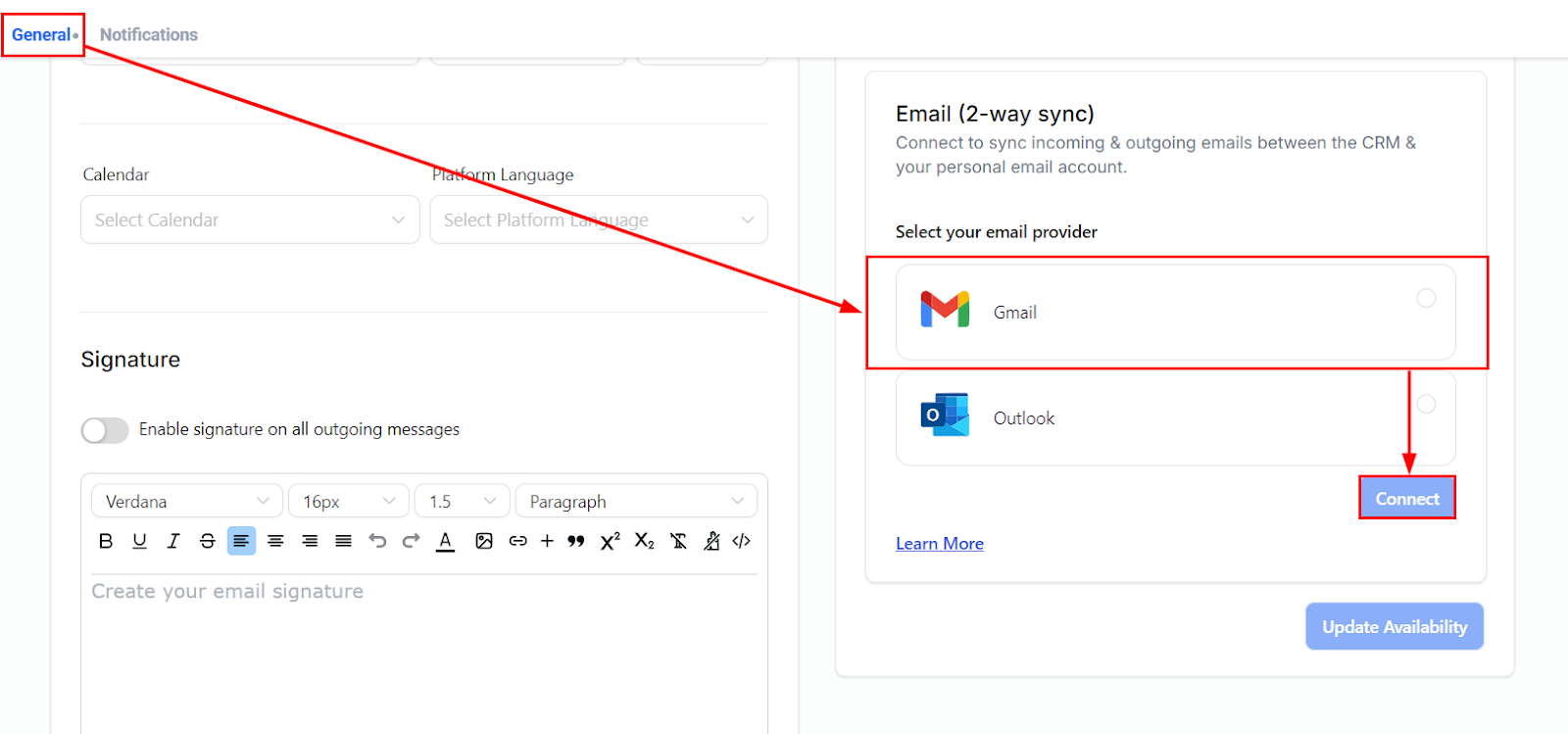
1. Access Account Settings: In your account settings, go to the My Profile tab. Under the General section, scroll down to Email (2-way sync) and select Gmail Two-Way Sync, then click Connect.
\
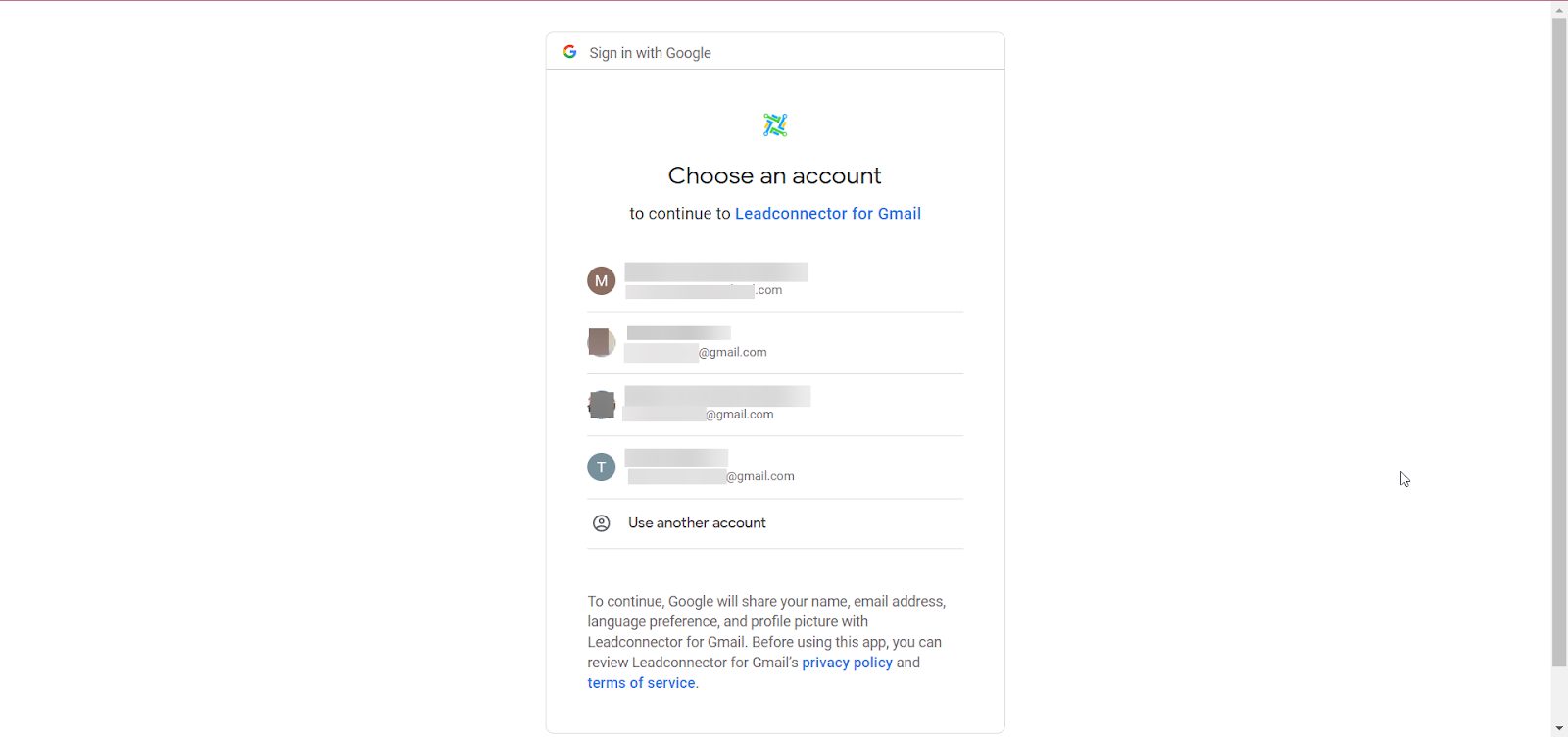
2. Choose a Gmail Account: Select an existing Gmail account or connect a new one by entering your Gmail login credentials.
\
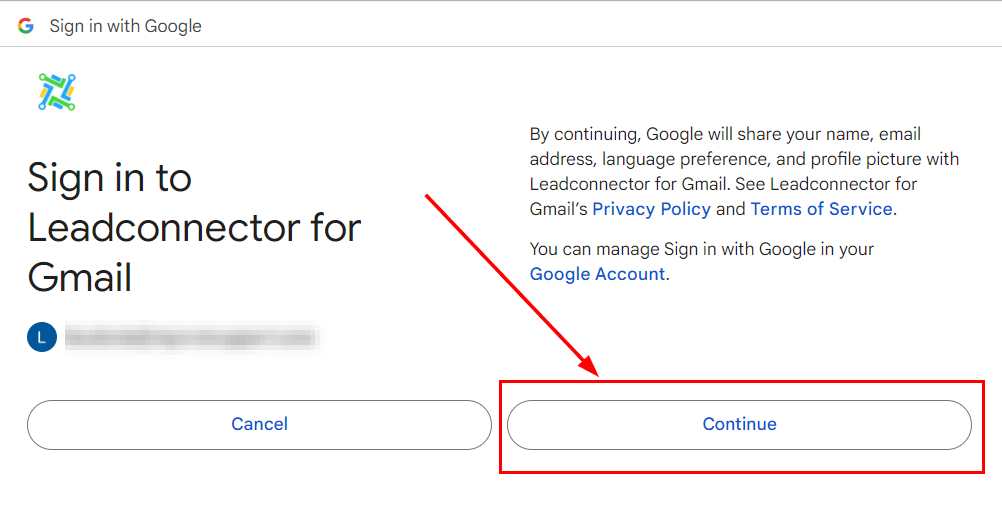
3. Grant Permissions: Review and approve the necessary permissions for LeadConnector to access your Gmail account. Click Continue to complete the process.
\
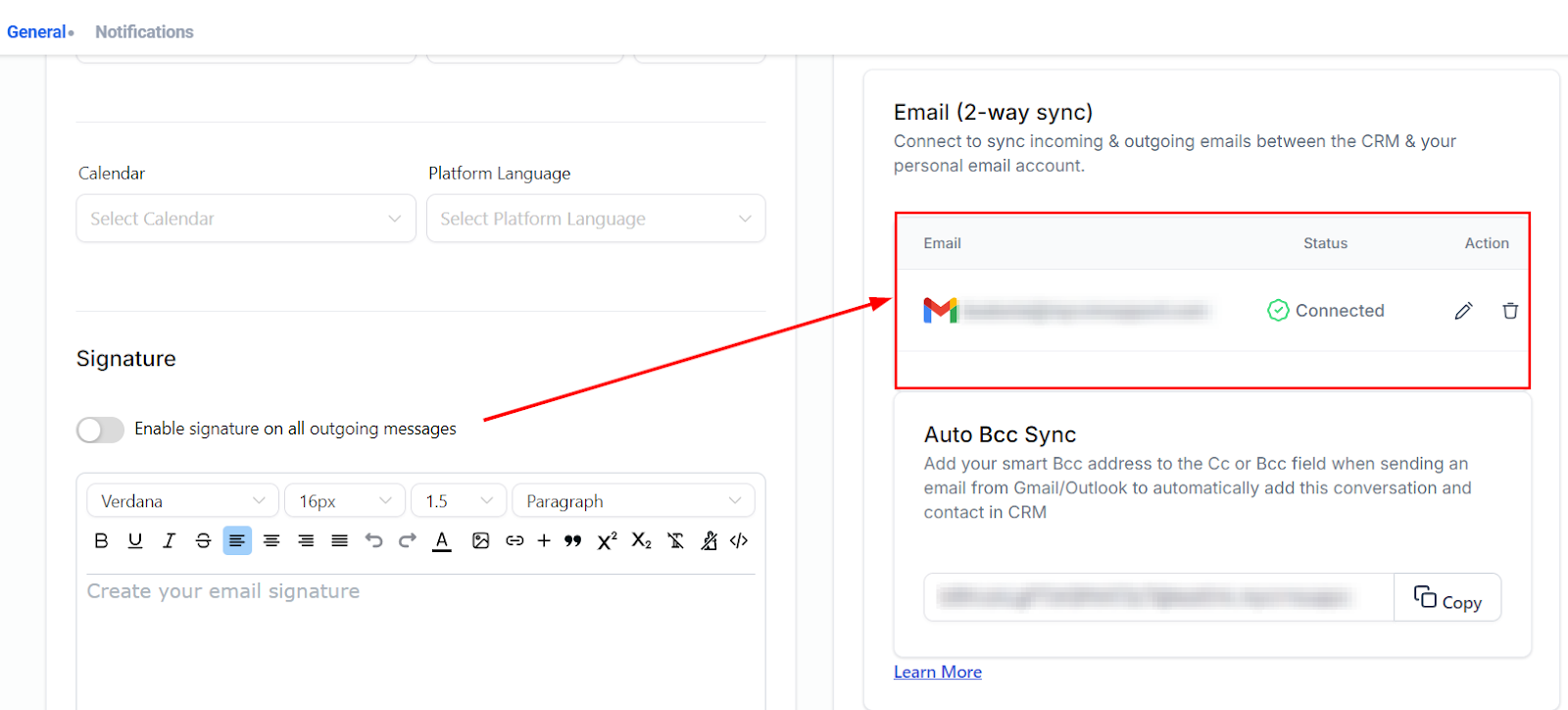
Once you've authorized access, your Gmail account will appear under the Email Two-Way Sync section.
\
***
Starting the Sync Process
To kick off the syncing process, send an email to a contact directly from the CRM. The sync begins when the first email is sent from the CRM.
?Note: Gmail Two-Way Sync supports attachments up to 25 MB. Sent emails will show in the Sent folder of your Gmail account.
\
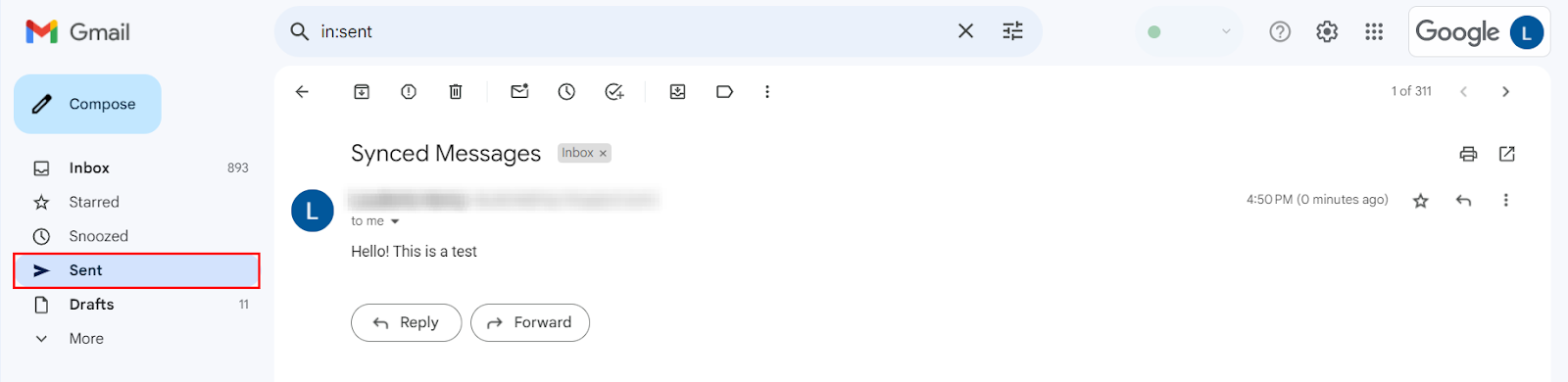
All emails in the same thread will be synced between your CRM and Gmail from this point forward.
***
Other Important Functions
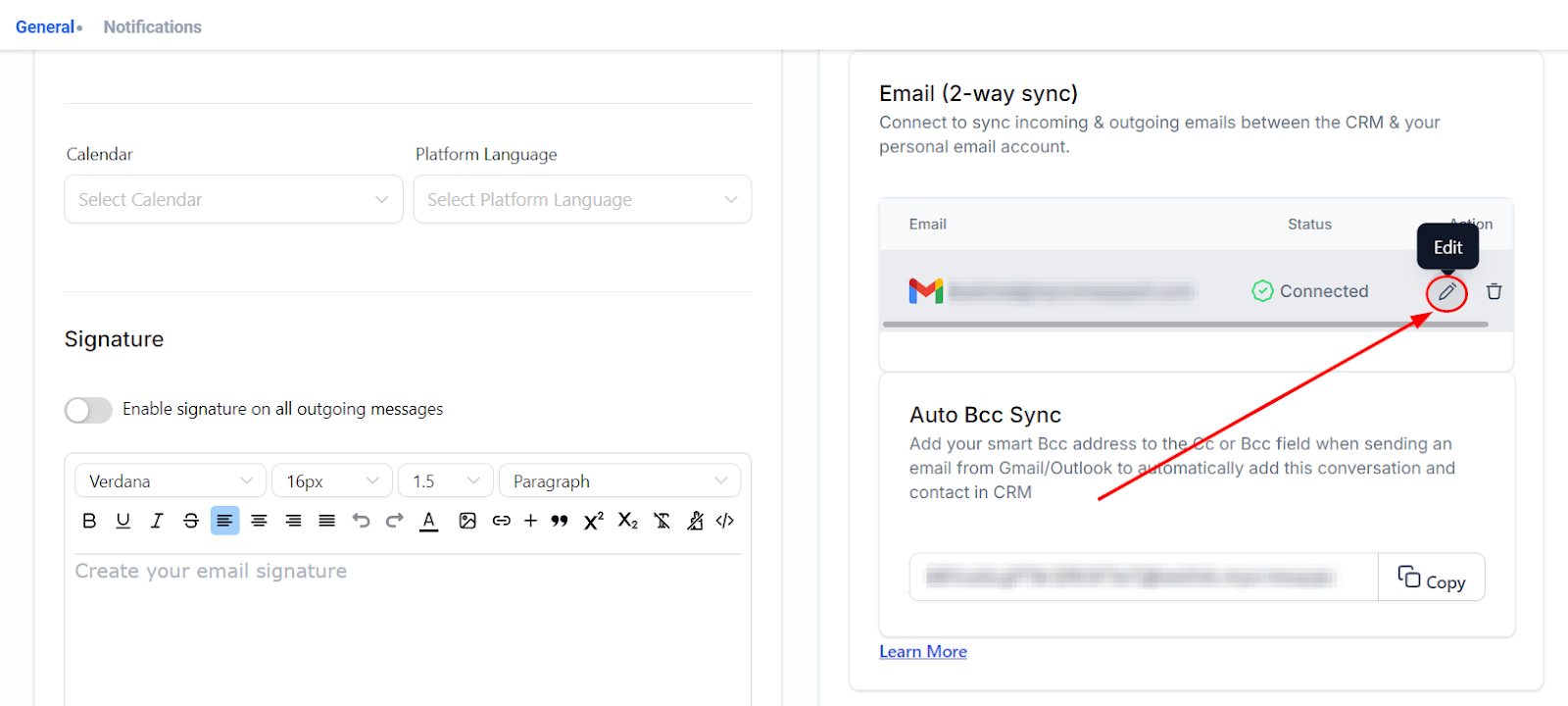
* Switching Emails: You can replace the connected Gmail account without disconnecting the old one. Future emails will sync with the new account, but previous conversations will stop syncing.
\
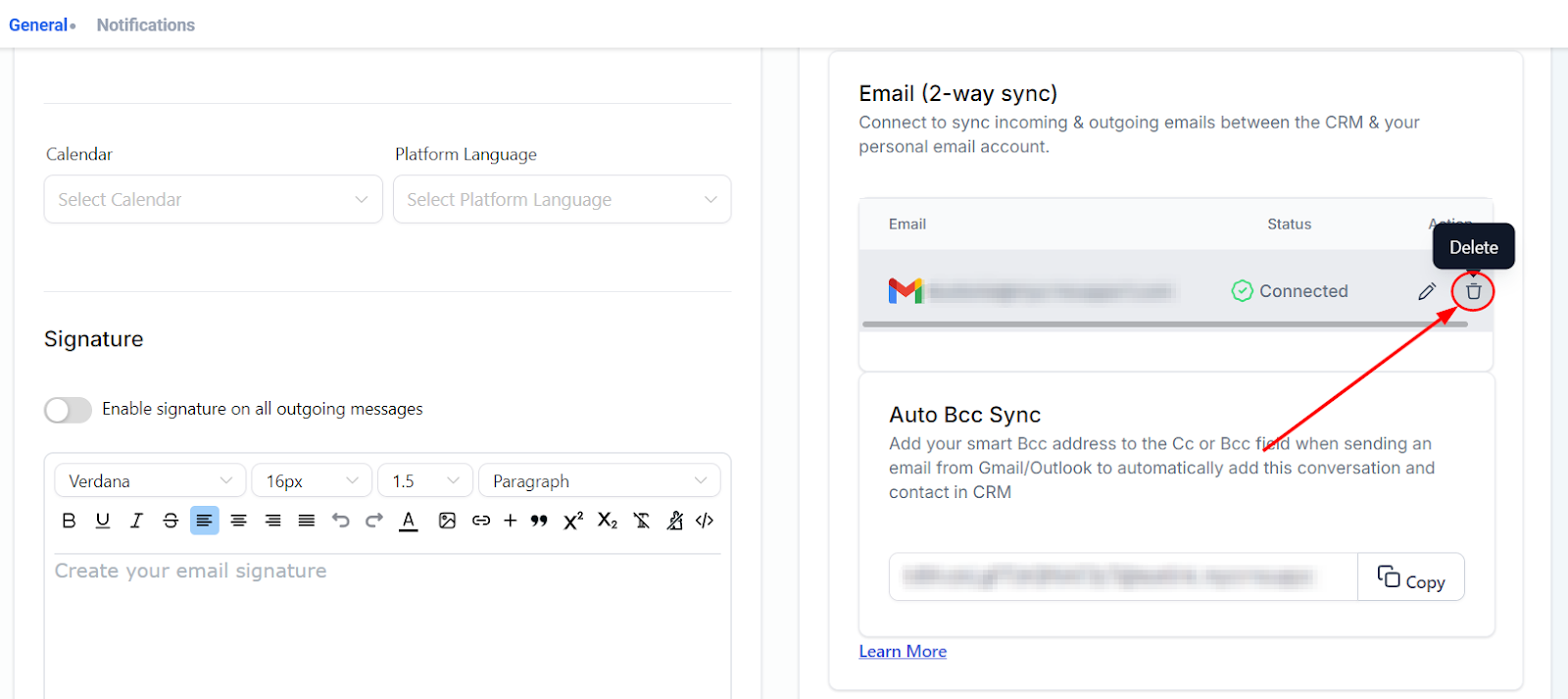
* Disconnecting Email: Disconnecting your Gmail will stop the synchronization between your CRM and Gmail.
\
***
Syncing Different Email Types
* Individual Emails: Outbound emails from the CRM will use your Gmail address as the sender.
* Bulk Emails: If your Gmail is listed as the sender, it will be used for bulk emails. Otherwise, the account’s default sender will be used.
* Automated Emails: Emails sent via workflows or automation will still use the CRM's default sending service.
---
# Agent Instructions
This documentation is published with GitBook. GitBook is the documentation platform designed so that both humans and AI agents can read, navigate, and reason over technical content effectively. Learn more at gitbook.com.
## Querying This Documentation
If you need additional information that is not directly available in this page, you can query the documentation dynamically by asking a question.
Perform an HTTP GET request on the current page URL with the `ask` query parameter:
```
GET https://help.ourarea.in/ss/settings/my-profile/integrating-gmail-with-two-way-email-sync.md?ask=
```
The question should be specific, self-contained, and written in natural language.
The response will contain a direct answer to the question and relevant excerpts and sources from the documentation.
Use this mechanism when the answer is not explicitly present in the current page, you need clarification or additional context, or you want to retrieve related documentation sections.